How to Turn Off Night Vision on Your Ring Camera
Ever wonder how to turn off night vision on your Ring camera? If you want to disable the infrared lights or switch to color mode, it’s straightforward but varies depending on your model.
In most cases, adjusting settings in the app can do the trick, while some models keep IR on automatically.
Keep reading to find out the steps and workarounds for your specific camera.
Why You Might Want to Disable Night Vision
Disabling night vision is often a good idea when environmental lighting is already sufficient. Infrared LEDs behind your camera can reflect off nearby surfaces like brick, glass, or tight corners, creating glare that washes out the image or partially blocks the view. This reflection results in a blinding glare that reduces facial detail and overall clarity. To prevent this, you can tape over the IR emitters or simply turn off night vision mode when there is enough ambient light. Unlike thermal imaging, which detects heat signatures, night vision technology relies on amplification of ambient light to create a visible image.
If your scene already has streetlights or floodlights, infrared illumination can overexpose the footage, making it difficult to distinguish faces or important details. Disabling night vision helps preserve natural colors and improves image clarity. It also minimizes the unnatural highlights that can occur at dusk, giving better color fidelity. The process for this adjustment involves a simple toggle action within the Video Settings of the Ring app to control nighttime video display preferences. Turning off IR when it’s unnecessary not only makes your footage cleaner but also reduces the camera’s visibility and conserves battery life.

Unbelievably Compact and Powerful - Based on our customers' needs on small-sized infrared illuminators for their long range applications, Tendelux nailed it. DI20B is only 1/2 the size of BI18 (our 18W model) and yet provides more illumination for your CCTV cameras to obtain crystal clear images at night.

Unbelievably Compact and Powerful - Based on our customers' needs on small-sized infrared illuminators for their medium range applications, Tendelux nailed it. DI10 is only 1/2 the size of BI8 (our 8W model) and yet provides more illumination for your CCTV cameras to obtain crystal clear images at night.
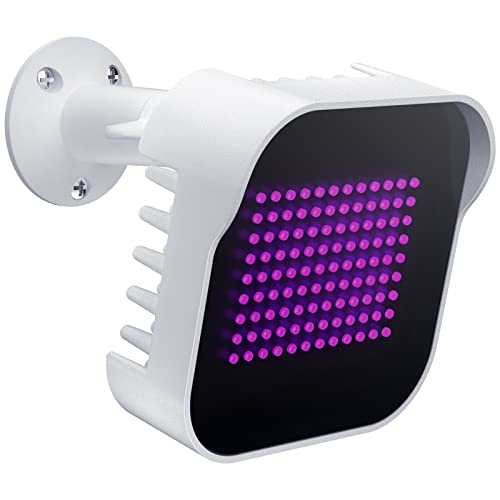
Unbelievably Compact and Powerful - Based on our customers' needs on small-sized infrared illuminators for their long range applications, Tendelux nailed it. DI20 is only 1/2 the size of BI18 (our 18W model) and yet provides more illumination for your CCTV cameras to obtain crystal clear images at night.
Can Your Ring Model Actually Turn Off Night Vision?
Whether your Ring model can actually turn off night vision depends on the device. To check, open the Ring app and navigate to Menu > Devices > Device Settings > Video Settings. If you see a Color Night Vision toggle, you can switch it off to disable infrared lights, turning nighttime footage into black and white. Doing so can conserve battery life by reducing processing, but it may also decrease video clarity in low light conditions. Not all models provide this option. Some Ring doorbells and stick-up cameras lack the ability to disable night vision completely, even if you turn off Color Night Vision. For those with compatible hardware, the mount’s design can influence stability, much like how a cantilever scope mount provides a secure, offset hold for optics. Check your device settings to confirm whether this feature is supported, as the absence of the toggle indicates night vision remains active regardless. For more advanced thermal sensing capabilities, consider building a custom thermal drone instead. Using a protective enclosure similar to a DIY trail camera security box can also help shield your Ring device from theft or weather damage.

*Pro-level security* - Spotlight Cam Pro, upgraded protection for your home with advanced features - like HDR, advanced 3D Motion Detection, and Dual-Band wifi (2.4 or 5.0 GHz).

Capture it all with Retinal 4K video — See every detail of your home or business in full view — powered by Retinal 4K. (Video quality may vary based on internet bandwidth and device temperature.)

Replace any lost or misplaced parts for your Ring security camera.
3 Workarounds When Night Vision Won’t Turn Off
If that doesn’t work, reboot the camera from the Device Health page. If the night vision still remains active, perform a full reset by holding the setup button for 20 seconds. After the reset, set up the camera again through the app to restore normal operation. For comparison, some trail cameras offer free cellular plans that eliminate the need for subscription fees. For DIY enthusiasts, a similar effect can be achieved by building your own camera using infrared LEDs and a standard webcam. Unlike Ring cameras, these setups can also help you identify bugs on night vision that might appear as false alerts.
As an alternative, you can cover the infrared emitters with electrical tape. This prevents the IR light from illuminating and creates a daylight-like image. Just make sure not to cover the motion sensors, as that could interfere with detection. Keep in mind, this is a workaround and not an officially recommended fix.

【TRUE INFRARED ILLUMINATOR FOR NIGHT VISION】 - 600 high-density LEDs (SMD 2835, 120 LEDs/m) on a 16.4ft flexible tape add strong, even infrared light to any night vision camera, turning dark scenes into clear black-and-white footage with no hot spots and no visible white light in the room.

Glossy black to the naked eye, bright refection with night vision

Protect your privacy: In advanced technological life, privacy is easily leaked. In order to prevent potential peeping, protect personal privacy and safety, a silver lens cover is very necessary. Users can shield the camera at any time according to their own needs, and easily enjoy the convenience brought by the Internet.
Toggle Color Night Vision (Not Infrared) in the App
Toggling Color Night Vision affects only the individual device you select, not your entire account. Keep in mind, turning on this feature does not disable infrared night vision—it remains active as a separate setting. After making changes, the camera may restart briefly to apply the new configuration. Not all camera models support this color night vision feature; check your device’s support documentation to confirm availability. Managing this setting allows you to enhance video clarity in low-light conditions without affecting the infrared night vision functionality. Understanding thermal cameras can help you decide if thermal imaging upgrades are beneficial for your specific needs. For example, hunting drones equipped with thermal sensors excel at detecting heat signatures in complete darkness, making them a powerful tool for tracking game. For those interested in similar lighting choices, red or green hunting lights offer distinct advantages depending on the environment and target.

VERIFY SCONCE COMPATIBILITY BEFORE YOU BUY: 1) Fits standard E26 light sockets (120V, 60Hz) only. DO NOT USE WITH DIMMER SWITCH. 2) Telescoping rod extends up to 1.2" . The Wyze Bulb Cam fits sconces depth <7.8" & bottom opening >2.5"

Mini camera, max performance — Mini 2K+ is our third-generation compact plug-in camera, delivering sharper 2K video resolution and improved audio clarity, so you can see and hear more of what matters.
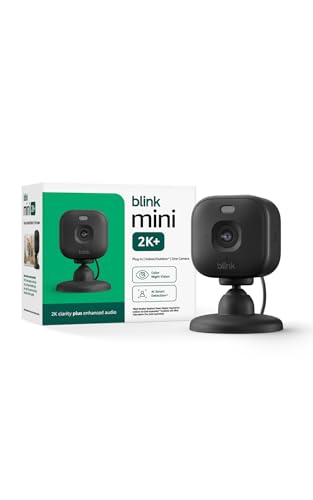
Mini camera, max performance — Mini 2K+ is our third-generation compact plug-in camera, delivering sharper 2K video resolution and improved audio clarity, so you can see and hear more of what matters.
Quick Test: Is Your Camera Still Using Infrared at Night?
To determine if your camera still uses infrared at night, start by observing the footage during darkness. When ambient light drops below a certain level, the video will switch from color to black-and-white, indicating infrared activation. This automatic shift happens based on ambient light levels, not user control, as Ring devices lack manual switching options. For users seeking superior low-light clarity, top night vision camera drones often include manual IR toggles for enhanced performance.
Next, check the IR LED indicator by looking at your camera’s lens in a dark room. You may see a faint red glow from the infrared LEDs. If you don’t notice anything, use your smartphone camera to scan the lens; the IR LEDs often appear as bright dots on the screen. No glow suggests infrared might be disabled or controlled by ambient light sensors, though this is rare since the system relies on automatic ambient detection. For those wanting full control in low-light settings, a common solution is to instead hide the camera using physical tricks from other security guides.
Finally, shine a flashlight directly at the camera. If the image returns to color, your camera is still using infrared in low light conditions. If the image does not change, it’s likely stuck in day mode or infrared has been turned off, but remember that without manual control, the camera will always revert to infrared when darkness triggers its sensors. For a comprehensive comparison of other models, you might want to explore night vision camera apps that offer manual IR toggles.
The One Model That Lets You Disable Night Vision Completely
The Ring Doorbell Pro 2 is the only model that allows you to disable night vision altogether. You can find this option under Device Settings > Video Settings, where modes include Standard, Wall Nearby, and Night Vision Off. Selecting Night Vision Off completely disables the IR mode, giving you full control over how your camera handles night visibility. However, it is important to note that most Ring models still activate infrared automatically when ambient light is low. Unlike military night vision goggles, which amplify existing light through a photomultiplier tube, Ring cameras rely on active infrared illumination. If your camera is not taking pictures, common causes include a low battery, a faulty SD card, or incorrect motion settings, all of which can prevent the camera from capturing images.
This feature is different from toggling Color Night Vision, which only affects the color mode on select devices like the Battery Doorbell Plus or Indoor Cam. On those models, infrared activation remains automatic and cannot be turned off. The Pro 2’s ability to fully disable IR makes it ideal if lighting conditions or glass interfere with recording. If you need total control over night vision, the Pro 2 is your only current option.

Capture it all with Retinal 4K video — See your home or business in the ultimate clarity with Retinal 4K.

Capture it all with Retinal 4K video — From wide views to tighter focus, it’s easy to see your home or business in the ultimate clarity with Retinal 4K.

Spare parts to help you set up your Ring Wired Doorbell Pro (Video Doorbell Pro 2) in just a few minutes.