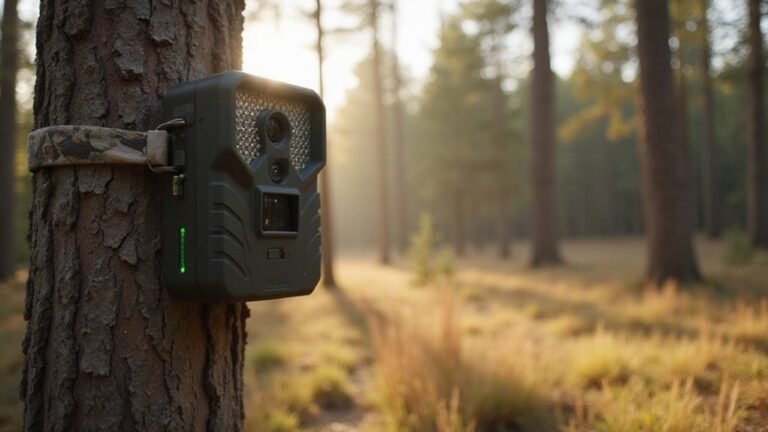
Pending “Camera Check In” on Tactacam Reveal: What Does It Mean?
If you see your Tactacam Reveal stuck on “Pending Camera Check In,” you’re probably wondering what’s causing the delay. This message means the camera hasn’t finished connecting with the server.
So, it can’t display info like signal strength or battery life yet. Usually, a quick restart or test image can fix the issue, but sometimes other problems are at play.
Keep reading to find out how to get your camera back online.
What Is a “Pending Camera Check In” on a Tactacam Reveal?
If you see “Pending Camera Check In” on your Tactacam Reveal, it means the camera has not yet completed its initial connection with the server or app. This status indicates that the device hasn’t yet successfully synced its information, such as signal strength, battery level, or SD card usage. During this time, the camera is in a temporary communication pause and cannot provide updates or transmit images properly. Additionally, using a different provider than originally activated may disrupt check-ins. Unlike devices that use thermal imaging to detect heat signatures, the Tactacam relies on cellular signal to complete its check-in process. For comparison, a thermal drone uses a different type of sensor entirely to detect heat rather than relying on a cellular network.
This isn’t a permanent issue but rather a setup or connection hurdle. Often, applying firmware updates resolves handshake problems, as outdated software can interfere with the initial check-in process. To troubleshoot, try power-cycling the camera or leaving it in setup mode longer to encourage a connection. Triggering the camera with a test image or field movement often clears this status. Factors like weak signal strength or low battery life can delay the check-in, but typically, once the camera transmits its first photo successfully, the “Pending Camera Check In” message will disappear.
First Fix: Reactivate Your SIM Card to Clear the Status
Before reactivating, verify your camera’s ICCID or IMEI number via QR scan or by removing the SIM card. This confirms you have the correct user permissions. If reactivation alone doesn’t resolve the issue, reseat the SIM card. To do this, power off the camera, remove the SIM card, and reinsert it with the notched end facing forward and the words facing outward. Ensure the SIM sits flush in the slot and clean the gold contacts with a dry cloth to improve connection. Firmware updates also influence connectivity, so check your camera’s firmware version in the app to ensure it is current. Both Verizon and AT&T SIM cards are included for flexibility, and you must choose the correct provider before reseating to avoid activation mismatches. A proper network reset can also be achieved by holding the power button for ten seconds to clear temporary glitches. This process mirrors the quick connect feature on Stealth Cam devices, which uses an automated network handshake to pair the camera with the cell tower. Unlike thermal detection, these steps rely on standard cellular signals rather than infrared heat sensing to establish a connection.

It is convenient for daily storage of standard SIM card, Nano card, Micro card, MicroSD memory card, etc,and also protect your valuable cards from getting damaged or lost.

NANO SIM ONLY: OThis holder is specifically designed for physical Nano SIM cards measuring approximately 12.3 × 8.8 mm. It is not compatible with Micro SIM, Standard SIM, microSD/TF memory cards or eSIM. Please verify your card type before ordering.

2-in-1 Tool, Your Efficient Companion: More than a storage case—it's also a card reader. Two tools in one, safely store your multiple SD/TF cards and read them at high speed. Solid Protection, Go Anywhere: Built with a sealed pull-out design and an impact-proof silicone cover. Rated IP54 for protection against dust and water splashes. *Resists rain and spills, but not for submersion.
Common Reasons Your Camera Won’t Check In
Cellular coverage fluctuations are a common reason your Tactacam Reveal fails to check in. Terrain features like hills, dense trees, or thick foliage can block signals during scheduled check-ins, even if your camera is actively sending pictures. While a weak signal might not stop your camera from capturing images, it can prevent the app from updating the camera’s status. This results in a mismatch where images are sent but the check-in status appears outdated or missing. To avoid this, place your camera in an open area with good cellular signals and consider test-checking the coverage at the intended location before deployment, similar to how you would connect your phone to an AGM thermal device to verify signal strength.

DATA: Frequency Range: 698-960 MHz, 1710-2170 MHz, 2300-2700 MHz; Gain: 5dBi; Direction: Omni-directional; Waterproof: IP67; V.S.W.R: <1.8 ; Impendance: 50Ω; Cabel Type: 3M/10FT RG58 Cable;

DATA: Frequency Range: 698-2700 MHz; Gain: 10dBi; Direction: Omni-directional; Waterproof: IP67; Impendance: 50Ω; Antenna Length:40cm/15.8inch;Antenna Cable: 20FT Low Loss RG58 N Female to RP-SMA Male Cable;Adapter: RP-SMA Female to SMA Male;
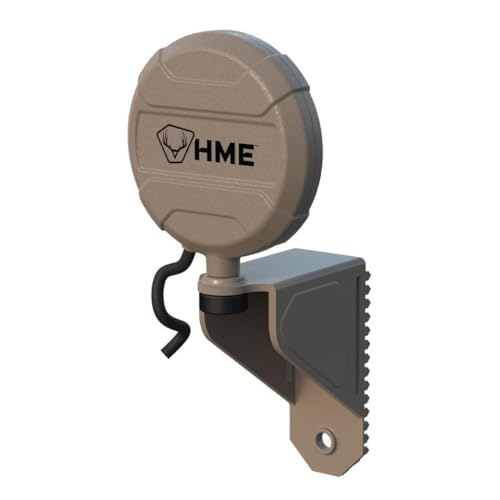
EXTERNAL ANTENNA-SIGNAL BOOSTER
Still Stuck? Check Signal, Battery, and the SD Card
Check-in issues can persist even after accounting for cellular fluctuations. First, assess your camera placement and nearby obstacles. Thick trees, hills, or buildings can block cellular signals, leading to a pending check-in status. Move the camera to a location with better carrier coverage and verify the signal strength using the signal indicator. Adequate signal strength is crucial for timely check-ins. Consider whether a Stealth Cam might offer comparable performance in your specific location. For those interested in alternative approaches, building your own thermal camera can teach you about signal interference from environmental obstacles. Military personnel often rely on military thermal scopes to overcome such signal-blocking terrain during operations.
Next, examine your battery. Low or declining batteries can prevent check-ins despite the app indicating remaining power. Replace with fresh batteries or a fully charged lithium cartridge to ensure consistent power for the device.
Finally, inspect your SD card. A slow or incompatible card can hinder check-in behavior. Use a full-size, class 10, U3 SD card with at least 90 MB/s transfer speed, ideally 16 or 32 GB capacity. Re-seat the SD card firmly until you hear a click. If issues continue, replace it with a new compatible card. Proper placement and quality of these three components solve most stuck check-in problems.

Shot speeds up to 60MB/s, transfer speeds up to 100MB/s (Up to 100MB/s read speed. Write speed up to 60MB/s. Based on internal testing; performance may be lower depending upon host device. 1MB=1,000,000 bytes.)

Quick Transfer, Less Waiting: Up to 90MB/s read speed for fast photo & video transfers. Spend less time waiting, more time shooting.For best results, use a USB 3.0+ card reader. Speed depends on your reader, device and working conditions
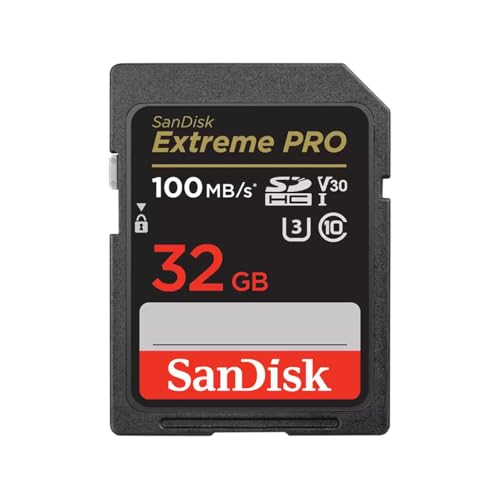
Shot speeds up to 90MB/s, transfer speeds up to 100MB/s (Up to 100MB/s read speed. Write speed up to 90MB/s. Based on internal testing; performance may be lower depending upon host device. 1MB=1,000,000 bytes. X = 150KB/sec.)
How to Trigger a Test Image for a Pending Camera Check In
To trigger a test image for a pending camera check-in, start by placing your camera in SETUP mode, not ON. Wait until the camera screen displays a stable camera signal—this indicates the camera is ready to send images. Once stabilized, press the Power/Enter or TEST button to send a test image. Ensure the antenna is properly attached before attempting a test. If the transmission succeeds, you’ll see a confirmation message or a green status indicator. If it fails, a failure message will appear instead. After the test, check the REVEAL app to confirm the picture has arrived. Do not switch your camera to ON mode until you verify receipt in the app. If the camera remains in a searching state, it cannot send a test image; address the signal issues before proceeding. Understanding the Pulsar thermal system helps explain why stable signal transmission is critical for consistent check-in performance. Budget constraints often drive users to seek cheaper alternatives, but these can compromise performance. The term “NODs” refers to night observation devices, which are commonly used for covert surveillance in low-light conditions.

DATA: Frequency Range: 698-2700 MHz; Gain: 9dBi; Direction: Omni-directional; Waterproof: IP67; V.S.W.R: <1.8 ; Impendance: 50Ω; Antenna Connector: RP-SMA Male;
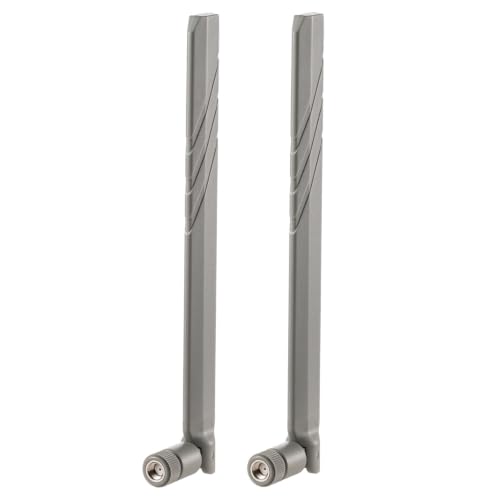
Compatible with Spypoint Link Micro/LINK-EVO/LINK-S Sola/LINK-DARK/LINK-W Cellular Trail Camera;

DATA: Frequency Range: 600-6000 MHz; Gain: 10dBi; Direction: Omni-directional; Waterproof: IP67; V.S.W.R: <1.8 ; Impendance: 50Ω; Antenna Connector: RP-SMA Male;
Can “Check-In Picture” Settings Force a Communication Update?
A Check-In Picture does not trigger an immediate communication update on its own. Instead, it acts as a scheduled heartbeat that indicates your camera is awake and transmitting. Actual settings synchronization depends on your communication schedule, particularly the Settings Check mode. Daily checks occur roughly every 24 hours, ensuring the camera’s settings stay current. The Hybrid mode keeps the camera active five minutes after a trigger, providing a balance between updates and battery life. Instant updates push changes within minutes but can drain the battery faster. For cameras using motion detection, configuring the trigger interval correctly helps prevent excessive false captures and wasted transmissions. Therefore, while a Check-In Picture helps confirm the camera’s activity, it does not force an immediate communication or setting update. This process works with the active GPS feature to help track the camera’s location for theft recovery, though the communication itself is not forced. To save on battery life, consider adjusting your communication schedule similar to strategies used for managing power in multi-lens night vision systems that optimize energy use through selective image enhancement.
When Basic Fixes Fail: When to Call Support
If basic fixes do not resolve your camera’s check-in issues, it’s time to contact support. Immediate attention is necessary if the app indicates an inactive SIM, a suspended account, or a mismatch between your device’s IMEI and ICCID. Support can reactivate your SIM card and verify that your device identifiers are correct. They can also confirm whether your SD card meets class 10 U3 specifications, as a corrupted card can block communication entirely. Before reaching out, check for firmware updates because outdated software often causes check-in failures. Poor camera placement combined with a weak signal after relocating the camera also suggests support intervention. If the camera still refuses to check in after powering it on, setting the correct mode, and waiting patiently, support can perform a thorough diagnosis. They will review signal strength, battery levels, and system logs to identify whether the issue resides on the account side or within the field. Unlike night vision goggles, which require at least some ambient light to amplify and function properly, your Tactacam also depends on specific environmental conditions to operate, much like the top red light gear used for coyote hunting relies on precise wavelength performance in low-light environments. Support can also check if your account is affected by a discontinued model transition that may alter network compatibility.
Pending Camera Check In” : A Quick Troubleshooting Recap
If your camera shows a “pending camera check-in” status, it means the device has not yet completed its initial communication with the app after setup or a restart. Start by adjusting the camera placement—move it to an area with better cellular coverage, avoiding hills and dense trees that can block signals. Ensure the camera is in setup mode, then capture a test image and switch it to ON to prompt the first check-in. Confirm your SIM card is active and that its IMEI and ICCID match the information in your app. Keep your firmware up to date; outdated software can prevent proper communication. If the problem persists, try power cycling the camera, check for low battery levels or issues with a corrupted SD card, and log out then back into the app. These actions typically resolve the pending check-in status quickly. However, even if the app is not down, real-world limits like weak cellular coverage or obstructed antennas can still cause delays in check-in. Understanding the cost of a trail camera helps prioritize whether investing in a signal booster or alternative placement is worth the expense to avoid recurring check-in delays.