How to Connect an AGM Thermal Device to Your Phone
Having trouble connecting your AGM thermal device to your phone? The process is straightforward once you know the steps.
By turning on the device’s Wi‑Fi hotspot and entering the correct password, you can easily pair it with your phone to view live thermal feeds and control settings.
Below, you’ll find simple instructions to get you connected and using your device effectively.
Turn On Your Device’s Wi‑Fi Hotspot First
To pair your phone with the AGM thermal device, you need to activate its Wi‑Fi hotspot first. Power on the thermal device completely; hotspot activation isn’t available until the device is fully on. Navigate to the main menu and find the Network or Wi‑Fi submenu—these sections contain the hotspot controls. The exact button sequence varies by model, so refer to your manual if needed. Once in the correct menu, select the hotspot option to toggle it on. The device will start broadcasting a Wi‑Fi signal immediately. After activation, the screen will display the network name (SSID) and password. The SSID often begins with wlan or wl‑, and the password is usually the characters after a dash or a default like 12345678. Make a note of these details since you’ll need them to connect your phone. For AGM Rattler V2 models, access the main menu by holding the power button for 5 seconds, then enable the Network feature to produce the Wi-Fi signal. Unlike military-grade red night vision goggles which have been banned for civilian sale, AGM thermal devices are widely available for personal use. When evaluating trail cameras for property monitoring, many users debate whether a Stealth Cam or Tactacam offers better low-light performance. For those interested in similar DIY projects, understanding how to build your own thermal drone can provide valuable insights into integrating thermal imaging with mobile connectivity.
Find and Join the Hotspot on Your Phone
Before connecting, verify the device security by checking the password. Typically, it’s based on the serial number or the characters following the dash in the SSID. From the list of available networks, select the correct hotspot name. Don’t worry about entering the password yet—just tap the hotspot name to proceed. Make sure you’re connected to the right SSID before moving forward. Look for a network name starting with “wLan” in the list. This process ensures your phone links to the AGM device’s night vision capabilities for clear viewing. Unlike thermal imaging, night vision amplifies available light to enhance visibility in low-light conditions. For accurate targeting in the field, the TU651 LRF also integrates a laser rangefinder for precise distance measurement.
Enter the Correct Hotspot Password
After selecting the correct hotspot from your phone’s Wi‑Fi list, you need to enter the correct password to connect. The hotspot password is usually the device’s serial number, so perform a serial number verification by checking the label on the device or in its settings menu. Type the serial number exactly as shown, including any hyphens. Keep in mind that password case sensitivity matters—use capital and lowercase letters as they appear. Avoid common demo passwords like MJ23107, as these won’t work for your device. You must match your specific unit’s serial code precisely. The Rattler’s hotspot can be verified as activated by checking the icon in the top right of the device screen. A simple DIY build uses an infrared illuminator to enhance visibility in complete darkness. For a similar setup process, always verify the Wi‑Fi signal strength as recommended when configuring trail cameras.
If your hotspot is named “Wlan-Serial No.” or “Wlan-IPTS [Serial No.]”, then the characters following the hyphen often form the password. Enter the code carefully—any mismatch prevents the connection from being established. After successful connection, your phone might display “no internet.” That’s normal because the AGM provides only local Wi‑Fi access, not internet sharing. For a reliable connection, ensure your device’s firmware is up to date, as battery performance and signal stability can vary between models, much like the trade-offs seen when comparing trail camera options.
Open the App and Add Your Device
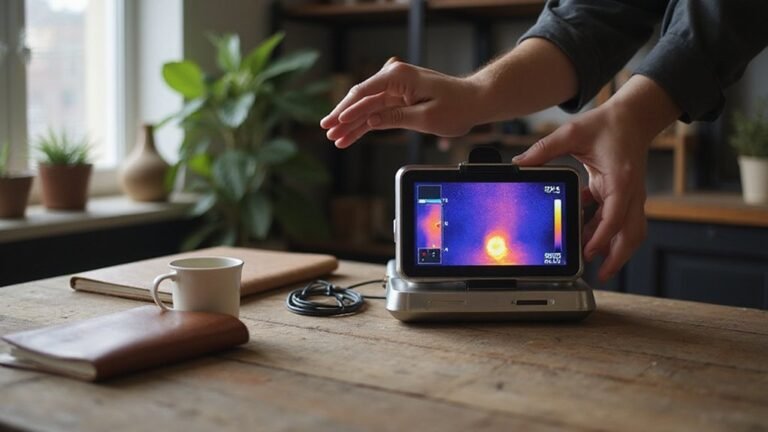
Once you open the app and add your device successfully, you will see real-time thermal video on your screen. You can use the app’s remote-control features after confirming the device is connected. This includes adjusting brightness, contrast, zoom, and selecting different color palettes through the app interface. Recording videos or downloading photos is also possible directly to your phone. The app also enables Wi-Fi hotspot toggling directly from the app menu for easier connectivity management.
If the live view doesn’t appear, try reopening the app and repeating the search step. This is common troubleshooting for device drops or connection issues. Make sure the scope remains listed in your Wi-Fi settings before relaunching the app to ensure it’s still connected.
Choose the Right App for Your AGM Model
You should find AGM Connect on both Google Play and the Apple App Store, published by AGM Global Vision, LLC. It requires at least iOS 13.0 or Android equivalent. If your phone won’t connect, this indicates an app troubleshooting issue—first, double-check that you’ve matched the app exactly to your model number. Forgetting to verify your device model is the leading cause of setup difficulties. Always confirm your device family against the app listing to ensure a seamless connection.

Fast Targeting. Wide Field of View: The RattlerV2 19-256 offers a 2.5x base magnification and a wider field of view — ideal for close- to mid-range scanning and fast-moving targets. Whether you’re hunting hogs in thick brush or predators on the move, this thermal scope keeps your target in sight and your response time sharp.

Extended Range. Wider Opportunity: With a 25mm Germanium lens and a powerful 3.5x base magnification, the RattlerV2 25-256 gives hunters a serious edge. Its thermal imaging scope lets you detect heat signatures out to 1,250 yards.

Precision Thermal Detection: Equipped with a high-sensitivity sub-35mK 12m thermal detector, this thermal monocular delivers sharp, clear imaging even in total darkness, ensuring clarity for identifying heat signatures during hunts or nighttime surveillance when it matters most
Control Brightness, Zoom, and Palettes in the App
Once your phone is connected to the AGM thermal device, you can easily control brightness, contrast, digital zoom, and palettes directly from the app. To adjust image parameters, tap the quick menu to access ten brightness levels and contrast controls. This allows you to sharpen scene visibility without touching the device itself. Digital zoom can be managed remotely by pinching or sliding on the screen, enabling you to inspect targets during live view. For users focused on top digital night vision reviews, it’s important to note that remote app control greatly enhances overall value by minimizing handling of the device in the field. Switching palettes for different heat signature visibility is also straightforward and can be done on the fly. This setup means all adjustments are made from your phone, reducing the need to handle the device. Be sure to confirm and save your preferred settings before exiting menus, ensuring these configurations are ready for your next use. The app also allows you to select from multiple preset color palettes for customized heat signature visibility. Building your own unit requires sourcing essential electronic parts like a sensor module and display. Night vision cameras, including thermal devices, convert ambient light into a visible image, allowing you to see in complete darkness.

iOS and Android Compatibility: The P1 thermal imager supports all USB-C smartphones and computers, including iOS, Android, and Windows. For iPhones with a Lightning port, a Type-C to Lightning adapter is required (sold separately). App name: Thermal Master.

𝐔𝐍𝐈𝐕𝐄𝐑𝐒𝐀𝐋 𝐂𝐎𝐌𝐏𝐀𝐓𝐈𝐁𝐈𝐋𝐈𝐓𝐘: The RISION Magic thermal imager offers USB-C port that works with iOS, Android & Windows devices. Note: Mac devices are not supported.

UNIVERSAL USB-C COMPATIBILITY: As an upgraded version of TC002C, the TOPDON TC002C Duo now works seamlessly with all USB-C smartphones and tablets (iOS, Android & Windows), ensuring compatibility with the latest Apple & Android devices. Note: Not compatible with Mac device or Android 16 device temporarily
Record Photos and Videos Directly to Your Phone
You can quickly capture photos and videos directly to your phone using the AGM app after customizing your preferred brightness, zoom, and palette settings. Simply tap the shutter icon to take a photo, or press the record button to record a video from the live thermal feed. All media files are automatically saved to your phone’s photo album, eliminating the need for a computer. Choosing reliable green light options for separate hunting tasks can help you compare low-light performance across different gear setups.
You can manage your media storage entirely within the app, where options are available to delete unwanted files for fast cleanup. Additionally, app customization allows you to set naming conventions and choose the destination folder for your files. Make sure your device’s Wi-Fi hotspot is active and that your phone is connected to its network before capturing media.
Using T-Vision or AGM Connect, you can view, capture, and organize all your thermal images and videos directly from your mobile device. The app streams the entire thermal image onto your phone’s screen, effectively transforming it into a full-featured viewfinder and recorder, ready for on-the-go analysis and documentation. For handling large media transfers, consider pairing your device with a top-rated SD card reader to ensure fast and reliable file management. This setup is especially useful for hunters who need to review high-resolution thermal imagery in the field without compromising on speed or storage capacity.
Update Your Device’s Firmware Right From the App
To update your device’s firmware directly from the app, follow these steps. First, ensure your AGM thermal model is compatible with the firmware update using the AGM Connect app. Within the device settings, locate the Device Upgrade option. Before downloading the firmware, the app will prompt you to switch networks—this ensures a stable connection. Once the download is complete, reconnect to the device and trigger the upgrade process. This two-step flow involves downloading the firmware first, then completing the upgrade after reconnecting. Unlike the common myth, thermal scopes cannot see through walls, as they only detect surface heat signatures rather than penetrating solid objects. Firmware updates may include optional features such as additional reticles or functionalities that are not mandatory for operation. If you experience connectivity issues, check whether the Moultrie mobile app is down due to server outages, which can affect similar outdoor technology apps. Understanding the price range of comparable thermal devices can help you decide whether investing in a firmware update is worth the long-term value.
If you encounter issues during the update, verify that your .dav firmware file is unzipped and correctly placed in the designated folder. If the upgrade fails, power off the device, wait a few seconds, and restart it. The process takes about a minute and will display an “Upgrading…” message until finished. After completion, check the firmware version in the device’s Info menu to confirm a successful update.

384×288 12μm Thermal Sensor: High-performance VOx thermal detector delivers sharp thermal imagery with excellent sensitivity and target recognition. Integrated 4K CMOS...
Fix AGM Hotspot Setup Problems
If your AGM thermal device’s firmware is current but you can’t see a live view on your phone, the hotspot connection is usually the issue. First, verify SSID stability by making sure your phone remains connected to the network beginning with “wl-”. Keep your phone locked onto this network and avoid switching to other Wi‑Fi networks or mobile data. Using airplane mode can help lock the connection in place. Next, double-check the device-specific password shown on the optic—any misentry, including incorrect characters or capitalization, will break authentication. Once connected, ignore any “no internet” warning; it’s normal for the hotspot to lack internet access. For a visual reference on how to properly position and stabilize the connection, you can review the night vision goggles drawing guide for tips on aligning components. For optimal low-light performance, consider how high-quality cameras on night vision drones maintain clarity in similar setups.
If you still encounter problems, try adjusting your phone’s hotspot band from 5 GHz to 2.4 GHz or enable Maximize compatibility mode. Also, disable Data Saver on your device and keep the hotspot settings page open to prevent the SSID from disappearing. Only open the AGM Connect app after confirming a solid Wi‑Fi link between your phone and the device. These steps ensure a stable local connection necessary for viewing live footage.