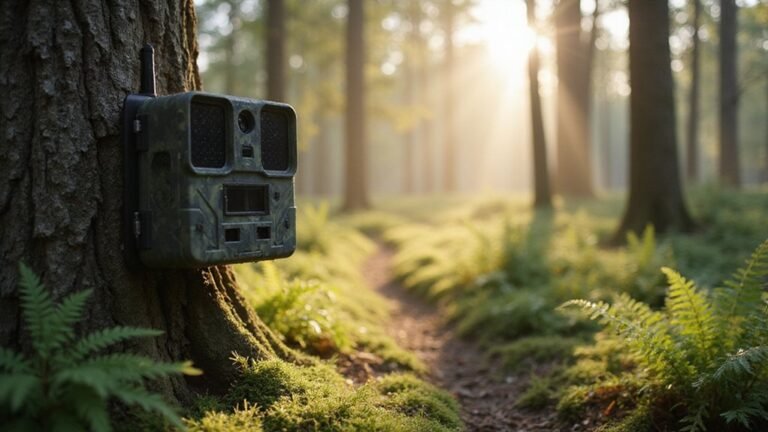
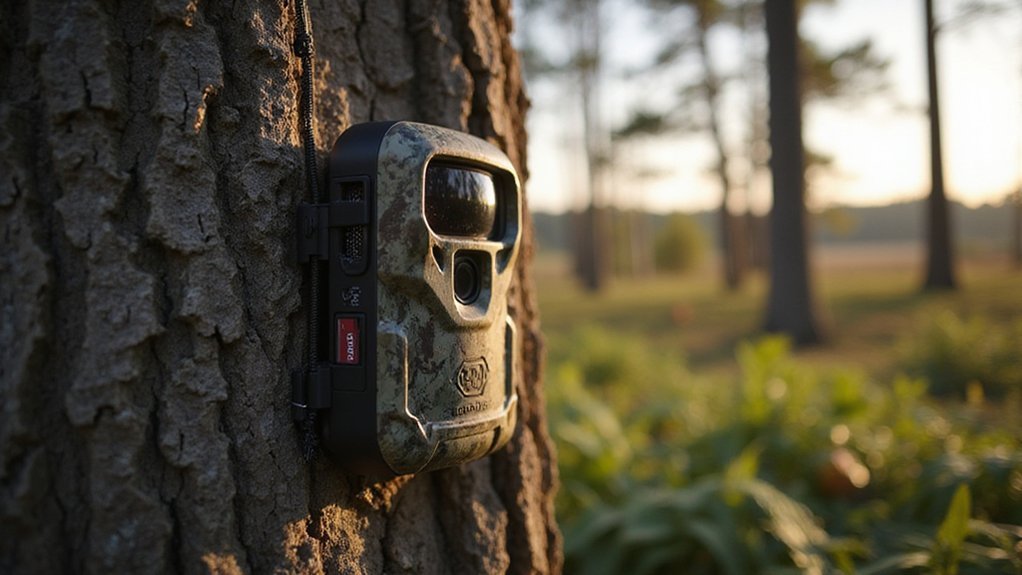
How to Set Up Your Tactacam Reveal X Pro Trail Camera
Setting up your Tactacam Reveal X Pro trail camera can seem like a lot at first, but once you break it down, it’s straightforward.
From inserting batteries and SD cards to connecting to Wi-Fi and your cellular plan, each step is simple enough to do in just a few minutes.
By the end, you’ll have your camera ready to capture wildlife in action, all set up for reliable performance in the field.
Keep reading for the full step-by-step guide to get your trail camera up and running smoothly.
What You’ll Need for Your REVEAL X-Pro Setup
You need these components to set up your REVEAL X-Pro: 12 AA batteries, with lithium batteries recommended for cold temperatures to ensure reliable power. Use a 32GB Class 10 U3 SD card; lower quality cards can cause performance issues. Choose between the included Verizon or AT&T SIM card based on which network offers the best signal in your area, then install it into the slot. If you need additional equipment for low-light observation, consider following a guide to finding night vision binoculars from top sources. Familiarize yourself with how image intensifier tubes amplify available light to better understand night vision device capabilities. For those interested in infrared detection rather than light amplification, a thermal camera app can convert your smartphone into a heat-sensing tool. Download and install the REVEAL app on your iOS or Android device, then activate the camera by scanning its QR code. When attaching the antenna, secure it firmly but avoid overtightening, which can damage the connection. Regular maintenance, like cleaning the door seal, helps ensure the camera operates smoothly over time. Ensure the SD card fits flush and clicks into place, confirming the gold plates face down for proper data transfer after insertion. Keep the app updated to benefit from the latest features and improvements, maintaining optimal performance.

Shot speeds up to 60MB/s, transfer speeds up to 100MB/s (Up to 100MB/s read speed. Write speed up to 60MB/s. Based on internal testing; performance may be lower depending upon host device. 1MB=1,000,000 bytes.)
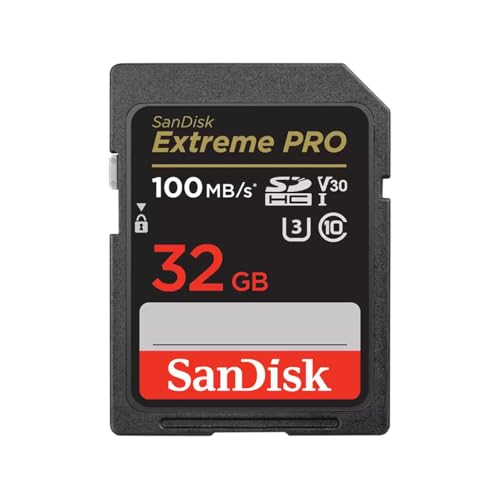
Shot speeds up to 90MB/s, transfer speeds up to 100MB/s (Up to 100MB/s read speed. Write speed up to 90MB/s. Based on internal testing; performance may be lower depending upon host device. 1MB=1,000,000 bytes. X = 150KB/sec.)
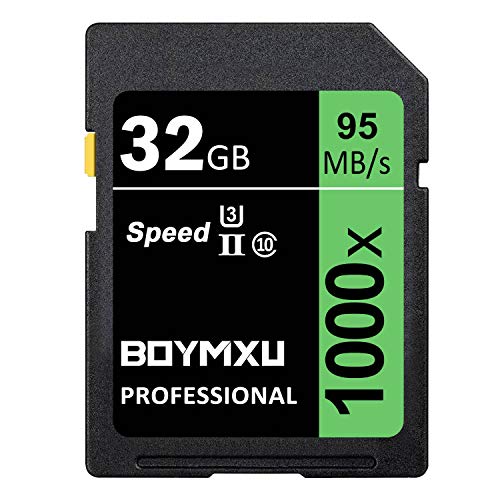
High Speed Class 10 Memory Card Class 10, Up to 95MB/sec speed for the ultimate transfer rates.(Key words:32 gb card 32g memory card 32g camera card class 10 u3 32gb card 32gb 10 class card memory cards camcorder memory card camcorder card camera card camera card )
Install Batteries, SIM Card, and SD Card in Your REVEAL X-Pro
To install the batteries, SIM card, and SD card, follow these steps carefully. First, press the EJECT button to release the battery tray. Insert 12 AA batteries, ensuring the positive and negative ends match the polarity markings inside the tray. Choose high-quality batteries like Energizer Ultimate Lithium or Duracell Max Alkaline for optimal performance, especially in cold weather. Slide the tray back into the compartment until it clicks securely.
Next, handle the SIM card. Use only the Verizon or AT&T card provided in the white envelope. Insert it into the dedicated SIM slot, making sure it sits properly without forcing it. Avoid using cards from other cameras to prevent compatibility issues. Understanding the cellular network coverage in your area is crucial for reliable remote image transmission, similar to how thermal drone operators must verify signal range before deployment. While analog systems often prioritize low-light clarity over data connectivity, your cellular plan’s signal strength directly impacts how quickly you receive images. This operational reliance underscores why certain restricted devices face regulatory scrutiny in sensitive zones.
Finally, insert a Class 10 U3 SD card of 16GB or 32GB capacity into its slot. Ensure the card is oriented correctly with the gold contacts facing down and the label side up. Do not force the card into the slot, as improper insertion can damage the card or the slot.
Once everything is installed, power on the camera. Allow it to cycle through startup. Check the status lights to confirm proper operation. If the camera does not turn on, recheck the battery orientation and ensure the tray is seated fully and clicks into place. For seasonal preparation, replace batteries in multiple cameras before the end of deer season to ensure ongoing monitoring during critical hunting periods.
Get the REVEAL App and Set Up Your Account
After installing the batteries, SIM card, and SD card, you need the REVEAL app to activate and manage your camera. Download the app from the Apple App Store or Google Play Store and open it. Create an account using your email and a password. You’ll receive a six-digit verification code in your inbox—enter it to verify your identity. Next, fill in your profile details such as your name, address, and phone number. If you encounter any issues, check the app’s troubleshooting section for quick solutions. Unlike thermal imaging which detects heat signatures, night vision amplifies available light for a clearer image in low-light conditions. Understanding digital night vision helps you appreciate how your camera captures images using a sensor and screen instead of traditional intensifier tubes. The app’s interface is straightforward and guides you step-by-step through the setup process. Use the same email and password here that you will use later on the Reveal Web Portal for easier access across platforms. With the app, you can adjust camera mode, send times, and other features remotely without needing to physically access the camera. Unlike thermal imaging, night vision goggles require at least some ambient light to produce a visible image and will not work in complete darkness.

AUTO-CONNECT MULTI-CARRIER LTE — AT&T AND VERIZON — An integrated SIM automatically locks onto whichever carrier has the stronger signal at your exact location. No SIM swapping. No carrier lock-in. No dead zones from a single-network camera. Just signal

SETUP IN MINUTES — Pre-installed antenna and pre-activated SIM card get your Reveal Pro 3.0 sending photos within minutes, no technical experience required.

REAL-TIME PHOTOS DELIVERED STRAIGHT TO YOUR PHONE — The REVEAL X 2.0 sends images to the free REVEAL app via AT&T 4G LTE the instant motion is detected. No WiFi. No SD card runs. Stop making blind trips and start making informed decisions
Add Your X-Pro and Pick the Right Plan
Once your account is set up, add your X-Pro in the REVEAL app by tapping the plus icon, then scan the camera’s QR code or enter its serial number. Since the app manages data separately from your phone’s service, you need to select a cellular plan. The X-Pro’s integrated SIM automatically connects to the strongest carrier signal, so activation fees are not required. For hunters who also consider red or green hunting lights for nighttime use, the choice between them depends on preserving night vision and wildlife behavior. A DIY approach to building your own night vision camera requires specific tools and parts, such as an infrared illuminator and a modified camera sensor. For comparison, flir thermal cameras for iPhone offer a different approach to nighttime detection by sensing heat rather than amplifying light.
There are three main plans to choose from. The Starter plan costs $5 per month for 250 photos, suitable if you only need basic features with no video or HD options. The Intermediate plan is $8 per month for 500 photos, ideal for moderate usage. For unlimited photos and Live View, the Pro plan is $13 per month, making it the most popular. You can also add Xtra for an extra $4 per month, which unlocks advanced mapping and HD video on supported plans.

AUTO-CONNECT MULTI-CARRIER LTE — AT&T AND VERIZON — An integrated SIM automatically locks onto whichever carrier has the stronger signal at your exact location. No SIM swapping. No carrier lock-in. No dead zones from a single-network camera. Just signal

Our most advanced 4G cellular trail camera - Built for demanding hunters and wildlife observers who want next-level features, reliability, and technology in the field

COMPLETE X 4.0 BUNDLE, READY OUT OF THE BOX — Includes the REVEAL X 4.0 cellular trail camera plus a microfiber cleaning cloth. 8GB of built-in storage means no SD card purchase required (optional slot for extra local backup).
Pair Your REVEAL X-Pro via QR Code or Wi-Fi
Alternatively, you can connect the camera via Wi-Fi by flipping it into SETUP mode until the Wi-Fi indicator blinks blue. In the app, navigate to the Account tab and select Connect to REVEAL Wi-Fi. Enter the password Reveal2021 (case-sensitive). Connecting through Wi-Fi allows for local setup and easier firmware updates. Once connected, you will be prompted to name your camera and assign its location. Wait about one minute for registration to complete. After this period, your camera will be ready for normal operation and you can take test photos at your monitoring site. To manage your footage efficiently, use a card reader that supports high-speed data transfer for reviewing and organizing images on your computer. Unlike some security cameras, the Tactacam Reveal X Pro uses active infrared night vision to capture clear images in low light, a common feature also found in certain home security devices like Ring cameras. This method of capturing heat signatures is distinct from the thermal imaging used in DJI drone payloads for detecting temperature differences.
Complete Activation and Name Your Camera
To complete activation, you’ll need to finish a few steps in the REVEAL by TACTACAM app. First, scan the QR code provided with your camera. Then, name your camera—using a specific label like “North Ridge” makes it easy to identify on your dashboard later. Next, add a location label that clearly points out where the camera is placed. This process also enables easy activation via the app’s QR scanning feature.
Proper battery maintenance is essential; ensure you insert fresh lithium batteries so the SIM card registers correctly without any dropouts. Confirm that the SIM card you’ve inserted matches your selected plan in the app. Finally, tap the Register button. Within about a minute, the camera will connect, indicated by signal bars moving from searching to connected. Occasionally, a clearing the SD card may help resolve connection or registration issues. Note that night vision cameras use infrared LEDs, not visible light, which is why human eyes do not glow under standard night vision like animal eyes do. Understanding the cost factors of thermal goggles can help you budget for similar high-tech hunting gear.
Once it’s live, your Reveal X-Pro is activated, named, and registered. You’re now ready to position the camera—but hold off on mounting it just yet, since mounting is the next step. For now, your camera has cellular service and is fully prepared for use.
Mount the Camera at Waist Height and Angle It 45 Degrees
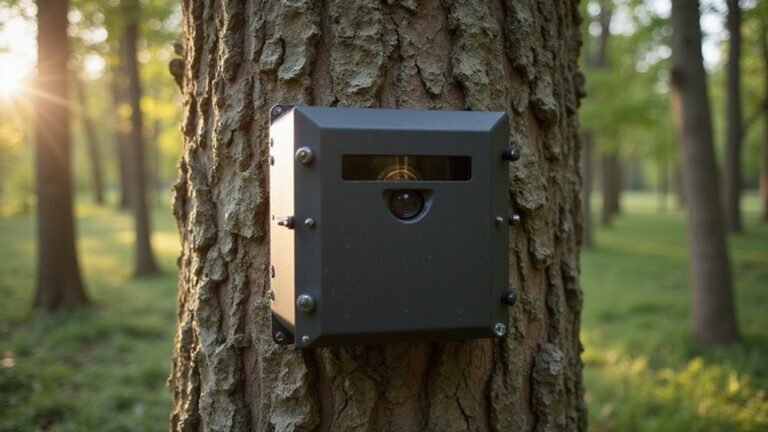
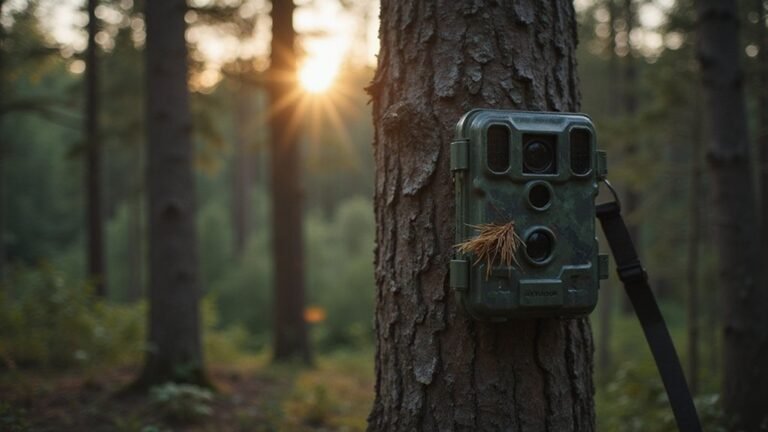
Mount the Tactacam Reveal X Pro at waist height, approximately 3.5 to 4.5 feet off the ground. This height aligns the sensor with a deer’s mid-body zone, where heat signatures are most prominent. Mounting too high narrows your field of view and decreases detection range, while mounting too low can cause false triggers from ground cover or movement. For larger game like elk or moose, you should instead hang the camera at backs to chest height to properly align with their taller body zone. Positioning the camera at this lower elevation also reduces the risk of theft by keeping it less visible from passing trails.
Angle the camera 45 degrees downward along a trail or travel corridor. This diagonal positioning allows animals to stay in the frame longer as they move across the sensor, increasing detection time. Add a slight tilt of 7 to 15 degrees downward to keep your subject centered without cutting off distance. Aiming straight across the trail limits your view and detection zone; instead, point your camera up or down the path for optimal coverage. Always check your setup in the app before leaving to ensure proper framing and focus.

Dual Mount Coverage: Boost your scouting with this versatile hunting camera mount, letting you run a solar panel for non stop power or attach two separate cameras to completely eliminate blind spots in the field

HIGH-QUALITY HOLDER - T-Post Trail Camera Holder is practical accessory designed for secure & convenient mounting of trail cameras on T-posts; The holder simplifies the process of positioning your trail camera, ensuring you capture the ideal shots/footage

HIGH-QUALITY HOLDER - Trail Camera Holder Tree Mount is a versatile & practical accessory for mounting trail cameras securely on trees in outdoor settings; The holder simplifies the process of positioning your trail camera for optimal image/video capture
Tighten the Antenna, Wipe the Seal, and Switch to Work Mode
To ensure reliable operation, you need to tighten the antenna, wipe the seal, and switch to work mode correctly. First, tighten the antenna securely after mounting the camera. The goal is a snug fit—avoid over-tightening, which can damage the port or spin the internal cable loose. Proper antenna security prevents signal loss and condensation behind the lens, both of which impair camera performance. The factory has improved sealing technology by filling the cavity with gel or silicone-like material to prevent moisture from penetrating the connections. Next, wipe the seal clean with a soft cloth. Debris on the seal can cause moisture intrusion and fogging, compromising the water resistance of your setup. Maintaining a clean seal is essential for protecting the camera from water damage. Lastly, press the left navigation arrow to switch to work mode. This activates the camera and initiates the process of sending photos once cellular signal is available. The first photo or motion video might take a few minutes to appear in the app. Before leaving, double-check that the antenna is tight and the seal is clean. These simple steps prevent common failures and ensure your camera operates reliably in the field. For comparison, thermal drone costs vary significantly based on sensor quality and features.
【Cleaning/Polishing】Miaozhun gun cleaning cloths are made of microsuede microfiber material, great for cleaning and polishing firearms and knives. Also can be used to clean rifle scope, sunglasses, eyeglasses, jewelry, cell phones and other electronics.

Super soft microfiber cleaning cloth that is housed inside of a protective neoprene pouch | Color: Mossy Oak Camouflage

Includes Four TACTACAM – Defend 360 Cellular Security Cameras with Solar Panels and Rechargeable Batteries, Microfiber Cleaning Cloth, and Eight 'Private Property No Trespassing' Warning Signs by Field Boys, a Trademarked Brand.