How to Clear an SD Card on a Tactacam Reveal X Camera
If you’re wondering how to clear space on your Tactacam Reveal X SD card, you might be tempted to just delete the files.
However, the best way is to format the card through the camera itself, which helps prevent data corruption.
By the end of this, you’ll know how to efficiently reset your SD card using simple steps.
Step 0: Back Up Your Photos and Power Off the Camera
To ensure your photos are safe, always back up your Tactacam Reveal X files before formatting the SD card. Power off the camera first to prevent data corruption, then remove the card carefully by pushing it in gently. Handle the card by its edges to keep contacts clean and avoid dirt or oil. Confirm that all images are saved to your computer or storage device before proceeding with the format. Remember, once you format the card, all unretrieved photos are permanently erased. This step is crucial for data security and prevents accidental loss of valuable trail-camera images. Only clear the SD card after verifying your backups; skipping this step risks losing everything you wish to keep. Following this sequence—backing up, powering down, and then removing the card—protects your data and ensures your camera is ready for its next use. Additionally, verify that your class 10 U3 card meets the manufacturer’s recommended specification for reliable performance during formatting and future deployments. For low-light conditions, night vision technology may be a better choice than thermal for observing wildlife. If you no longer need the service, you can cancel your subscription through the same account settings. For outdoor setups, consider using a thermal drone to survey the terrain and identify the best mounting locations for your camera.
How to Format Your Reveal X SD Card Using the Camera Menu
To format your Reveal X SD card using the camera menu, start by turning on your camera. For X Pro and X Pro 3.0 models, press the right arrow button to access the menu, then navigate to General. Highlight Format SD card and press Enter. The camera will prompt you for confirmation—select Yes to proceed. This action erases all data on the card and resets it to a clean state. Unlike a thermal camera, which detects heat signatures and cannot penetrate clothing, an SD card format is a purely digital process that removes files without affecting hardware. Once the formatting is complete, a “complete” status will appear on the screen. The Reveal 3.0 and Pro models differ in performance and cost, so choose accordingly based on your needs. Turn off the camera and reinsert the SD card. After formatting, you should connect to cellular service to confirm the camera is ready to send photos. Your camera is now ready to store new photos. Keep in mind that formatting alone does not perform battery calibration or firmware updates, which should be done separately to ensure optimal camera performance.
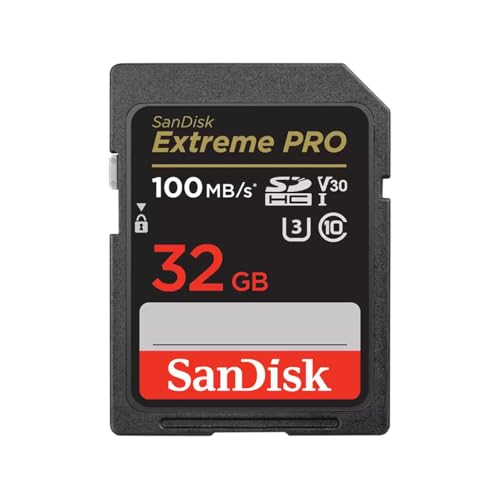
Shot speeds up to 90MB/s, transfer speeds up to 100MB/s (Up to 100MB/s read speed. Write speed up to 90MB/s. Based on internal testing; performance may be lower depending upon host device. 1MB=1,000,000 bytes. X = 150KB/sec.)


Shot speeds up to 60MB/s, transfer speeds up to 100MB/s (Up to 100MB/s read speed. Write speed up to 60MB/s. Based on internal testing; performance may be lower depending upon host device. 1MB=1,000,000 bytes.)
Model-Specific Menu Paths for Gen 1, X, and X Pro
To access the format option on your Reveal models, follow these steps:
For Gen 1, enter setup mode and press the up arrow button, then the menu button. This model does not support app-based formatting, so all formatting must be done through these physical buttons. Regular clearing maintains camera functionality and ensures sufficient space for new media. If you need to manage other subscriptions, you can cancel a stealth cam subscription through their account settings. Unlike the green-tinted display of night vision devices, which use phosphor screens to enhance contrast in low light, the Gen 1’s button interface requires deliberate manual input. For users seeking top-tier low-light optics, the best night vision goggles offer superior image clarity in total darkness.
On the Reveal X, power on the device and press the right arrow to navigate to the menu. Then, go to General Settings and select Format SD Card. Depending on your firmware version, this option might be labeled as Erase SD Card or Clear Memory.
For the X Pro, the process is the same as the X. Navigate to General Settings in the menu, select Format SD Card, and confirm when prompted. Both X and X Pro will ask you to confirm with Yes before proceeding.

AMPLE STORAGE CAPACITY - HME SD Cards come in various storage capacities, ranging from 8 GB to 32 GB; This variety allows to choose the card size that best suits your specific needs, ensuring enough storage space for their trail camera images and videos

HIGH-SPEED DATA TRANSFERRING - The Stealth Cam SD Cards redefine efficiency with its high-speed data transfer capabilities; Offering a class 10 speed rating, this SD memory card ensures seamless recording of videos & capturing high-resolution pictures

Optimized for Trail Cameras – The HuntEmUp 32GB SD Ultimate delivers fast, reliable storage for trail cameras, ensuring quick writes for photos and video without lag or missed shots.
Format Your SD Card Through the Reveal App (Via Bluetooth)
If your Tactacam REVEAL camera is a supported model (X, XB, SK, X2.0, or X Pro), you can format the SD card directly through the Reveal app via Bluetooth. This process sidesteps using the camera’s on‑screen menus, making maintenance quicker and more straightforward. This method is similar to using a thermal camera to quickly identify temperature issues without manual adjustments.
First, power on your camera and open the Reveal app. From the Home screen, tap Cameras at the bottom and select your specific camera. Make sure the camera is in setup mode and connected via Bluetooth—you need it in hand for this step, not remotely.
Navigate to the Camera Information page. Scroll down and tap Format Camera Memory. A warning will pop up indicating that formatting erases all photos and videos—be sure to back up any files you want to keep before proceeding. To confirm, tap the red button. The app will then send a direct command to the camera to erase and reset the SD card, freeing space for new images and videos. Use this option whenever your card needs a refresh or if your camera has stopped capturing content properly.

5 Pieces SanDisk MicroSD to SD Adapter ONLY (Memory Card NOT included)

【USB 3.0 + USB C】 Both interfaces support high-speed data transfer up to 5 Gbps, allowing you easily transfer 1G files in seconds. Dual Card Slots, support SDXC, SDHC, SD, MMC, RS-MMC, Micro SDXC, Micro SD and Micro SDHC cards from Camera/ Gopro/ Dash Cam/ Surveillance camera. Backwards compatible with USB 2.0 and USB 1.1. (📌Note: "SD"card and "Micro SD" card not included.)

AUTO-CONNECT MULTI-CARRIER LTE — AT&T AND VERIZON — An integrated SIM automatically locks onto whichever carrier has the stronger signal at your exact location. No SIM swapping. No carrier lock-in. No dead zones from a single-network camera. Just signal
Format Your SD Card on a Computer With FAT32 or exFAT
Formatting your SD card on a computer allows you to select the optimal file system, ensuring maximum compatibility with your Tactacam REVEAL X. First, remove the card from your camera by gently pushing it in to release it. Insert it into your PC or Mac using a built-in card slot or an external card reader.
On Windows, open File Explorer, right-click the drive that represents your SD card, and choose the format option. Select FAT32 for cards 32 GB or smaller, as this file system provides broad compatibility and reliable performance. For cards larger than 32 GB, choose exFAT, which supports bigger capacities and faster transfer speeds. Check the Quick Format box to speed up the process, but remember that a full wipe is more thorough. Performing a full wipe ensures the SD card is ready for new footage and photos without any residual data.
On Mac, open Disk Utility, locate your SD card in the sidebar, and select it. Click Erase, then choose MS-DOS (FAT) for cards up to 32 GB or exFAT for larger cards. Confirm your choice and click Erase. This process will completely wipe the card, removing residual data that could interfere with performance or data recovery.
Always safely eject your SD card after formatting before reinserting it into your camera to prevent any file system errors or data corruption. Proper formatting and ejection help extend your memory card’s lifespan and ensure smooth operation with your Tactacam REVEAL X.

【Ultra-Fast Data Transfer】Experience blazing-fast 5Gbps data transfer with this USB 3.0 SD Card Reader, ensuring quick and efficient file transfers for photos, videos, and other media. Backward-compatible with USB 2.0 for added flexibility. Easily review and transfer data from security cameras, wildlife monitors, or car cameras, gopro without hassle(📌Note:only reads and transfers data from the SD and TF card, not directly connect to the camera)
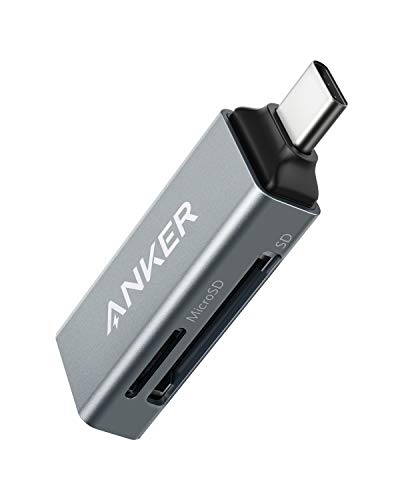
Ultra-Compact: Use effortlessly next to other peripherals in your computer's USB port, or connect to your phone. Note: You may need to remove the case from your device before using this product.
![Micro SD Card Reader for iPhone,Lightning to Micro SD/TF Adapter,[Apple MFi Certified] Memory Card Reader for iPhone & iPad,Supports iOS 13 & exFAT/FAT32,Perfect for iPhone 14 13 12 11 8 7 6 Expansion](https://m.media-amazon.com/images/I/41syeXwj8DL._SL500_.jpg)
【Universal compatibility】 Whether you own an iPhone 14 13 12 11 XS Max XR X 8 7 6 5 or iPad iPod, our micro SD reader is compatible with them all. With easy plug-and-play functionality, it's never been simpler to expand your iPhone storage and keep your files safe and secure.Compatible with iPhone 14/14 Pro Max/13/13 Mini/13 Pro/13 Pro Max/12 Mini/12/12 Pro/12 Pro Max/11/XR/XS/X/8 7, iPad etc.
What to Do If Your Camera Doesn’t Recognize the Card After Clearing?
If your Tactacam REVEAL X does not recognize the SD card after you’ve cleared it, the issue is likely related to formatting, power, or compatibility rather than leftover files. First, turn off the camera, then remove the SD card and re-insert it firmly until it clicks into place. Power on the device and immediately check the menu to see if the card is recognized. If it still isn’t detected, replace the batteries with fresh ones because low voltage can interfere with the camera’s ability to detect the card. Next, verify that your camera’s firmware is up to date since outdated software can cause recognition issues. Visit the manufacturer’s website to download and install any available firmware updates. If the card remains unrecognized, the contacts may be dirty, or the card itself could be damaged or worn out. Clean the contacts gently with a dry, lint-free cloth or test a different SD card to see if that resolves the problem. Remember that using a thermal imaging tool can help diagnose overheating issues that might affect the camera’s electronics. Keep in mind that the camera’s core cellular features will not work without a signal, so a card issue may also stem from testing in an area with no coverage. If none of these steps work, contact customer support for further assistance. For optimal performance, consider using a dash cam designed with superior night vision to ensure clear road shots in low-light conditions.

MADE FOR TACTACAM TRAIL CAMERAS – Meets Tactacam's recommended SD card specification: a full-size, Class 10, U3-rated card in the ideal 32GB capacity. It drops right into your Tactacam Reveal and other trail cams for dependable photo and video capture in the field – and Lexar is one of Tactacam's own recommended memory card brands.
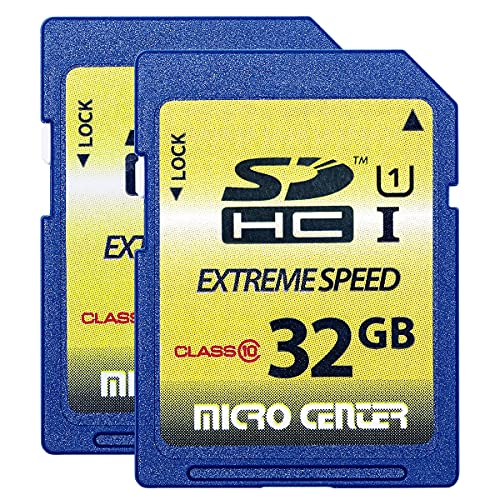
Full-size SD card, 32GB SDHC flash memory card 2 pack. Not compatible with mobile phones due to physical dimensions

AUTO-CONNECT MULTI-CARRIER LTE — AT&T AND VERIZON — An integrated SIM automatically locks onto whichever carrier has the stronger signal at your exact location. No SIM swapping. No carrier lock-in. No dead zones from a single-network camera. Just signal
Why Formatting (Not Deleting) Is the Best Way to Clear Your Reveal X Card
While simply deleting files might seem faster, formatting your SD card gives you a far more effective clean slate. Deleting only removes file references, leaving recoverable data fragments behind. A full format, however, overwrites the card structure, drastically reducing the chance that anyone with recovery software could retrieve your old images. It also incorporates data encryption protocols, enhancing your card’s security layer.
You’ll prevent corruption issues as well. Formatting rebuilds the file system, clearing out any hidden errors or fragmented indices that simple deletion can’t address. This improves your Reveal X’s write performance and guarantees the camera recognizes your card every time. So don’t just delete—format in-camera for a truly clean, secure, and reliable card.