How to Cancel Your Stealth Cam Subscription
If you’re trying to stop being billed for your Stealth Cam subscription, you might feel a bit lost about what steps to take.
Whether you signed up within the app or through Apple or Google Play, canceling isn’t always straightforward.
This guide will walk you through exactly how to cancel your subscription and what to do if charges still come through.
Cancel Your Stealth Cam Subscription in the Stealth Cam App
To cancel your Stealth Cam subscription in the Stealth Cam app, open the app and tap the hamburger menu in the top right corner. Select Account, then choose the specific camera linked to your billing. You will see options labeled Suspend or Remove to stop that camera’s billing. Billing is handled on a per-camera basis, not for your entire Account. This means you need to repeat the process for each camera with an active subscription. Do not only delete the app; simply removing it does not cancel any charges. Instead, go into your camera settings to individually stop each subscription renewal. Use the Remove option to permanently detach the camera or Suspend to temporarily halt billing. Confirm the change by ensuring your selected camera shows as suspended or removed. If your subscription is billed through Apple or Google Play, you must cancel the subscription directly through those platforms instead. For users who prefer a different feature set, exploring thermal camera apps can provide an alternative approach to monitoring without a per-camera billing model. Stealth Cam and Tactacam offer different cost and performance tradeoffs that affect which subscription plan best suits your needs. Understanding how thermal scopes work can help you appreciate that infrared technology operates independently of visible light, unlike standard camera subscriptions.

DON'T MISS THE ACTION - With a long-reaching 80ft detection & IR flash range, this trail hunting camera delivers broad coverage & enhanced visibility; The 0.35-second trigger speed takes 1 to 6 images per trigger to ensure you never miss fast-moving game

High-Quality Imaging and Video: The camera features a 40MP photo resolution (selectable between 4MP, 8MP, 16MP, and 40MP) and 1440 QHD video with audio, providing crystal-clear images and detailed video footage. It also supports panoramic 360º and 180º photos for wide-angle captures.

HIGH-RESOLUTION CELLULAR CAMERA FOR CRISP IMAGES AND VIDEO: Capture every detail with up to 42MP photos and 1080P video, with multiple photo resolution options (4MP / 8MP / 16MP / 42MP) and 16 photo burst capabilities for maximum coverage of wildlife activity
Cancel Through the Command Pro App If You Use That
To cancel through the Command Pro app, start by opening the hamburger menu in the top-right corner and then tapping Account. From there, select the camera linked to your Account. To stop billing, choose Suspend or Remove. You need to repeat this process for every camera associated with your account. Alternatively, tap the personal info icon at the bottom, go to the plans tab, and select the corresponding camera. Use Suspend or Remove, and confirm any prompts if they appear. Keep in mind that billing is managed at the camera level, not across all devices universally. This approach allows you to control billing precisely, stopping payments only for specific cameras. Suspended cameras can later be reinstated if needed. This method ensures you maintain precise control over each device, similar to how a cantilever scope mount provides stable, independent adjustment for a single optic. For physical protection of your camera, you might also consider building a security box to deter theft. If the app appears unresponsive during this process, check for Moultrie Mobile service outages that could temporarily affect account management.

LARGE SECURITY BOX - Choose the security box size that perfectly complements your Stealth Cam model; The Large boxes cater to the Deceptor, Reactor, GMAX & DS4K TM series; Selecting the right-sized box ensures a snug fit & maximum protection
SMALL SECURITY BOX - Choose the trail camera security box size that perfectly suits your Stealth Cam model to ensure a snug fit & maximum protection; The Small boxes cater to the Fusion-X Pro, Fusion-X, Connect, Fusion, QS, QV, PXP & FP series

LARGE SECURITY BOX - Choose the security box size that perfectly complements your Stealth Cam model; The Large boxes cater to the Deceptor, Reactor, GMAX & DS4K TM series; Selecting the right-sized box ensures a snug fit & maximum protection
Check If Your Billing Runs Through Apple or Stealth Cam
If the charge comes directly from Stealth Cam, Apple won’t list it. Instead, open the Command app, go to Account, and select the camera. Use Suspend or Remove to stop billing. You must do this for each camera individually. Removing a camera does not cancel the subscription; that process is handled separately. To confirm your billing source quickly, check Apple’s records first—this is the most efficient way to verify if the charge is through Apple or Stealth Cam. Unlike night vision vs. thermal technology, which compares low-light imaging methods, your billing source is determined solely by where the subscription was originally purchased. To interpret the heat signatures on your screen correctly, adjust the thermal camera settings for the specific environment you are monitoring. Before making any changes, ensure your camera’s firmware is updated, as this can affect the subscription management options available in the app.

★ High-Quality DivineEagle Technology: This pet camera captures clear Full HD video-only. ★ Versatile Applications: Ideal for pets, use in homes, offices, and more. ★...
Does Removing a Camera Actually Stop the Charges?
Removing a camera from your Stealth Cam account directly stops billing for that particular device, as support documentation confirms that “payments for this camera will cease” once it’s removed. This action stops charges for the specific camera because pricing is calculated per device, not as a flat fee for the entire account. You need to remove each camera individually to stop billing for it. If you leave other cameras active in your account, those remaining devices will continue to incur their own plan charges. This process is distinct from performing a factory reset on a trail camera, which clears all settings but does not affect billing. Unlike night vision cameras, human eyes do not naturally glow under infrared illumination, which is a common misconception about how such imaging systems work. Removing a camera does not automatically cancel charges for your whole account. To fully stop billing, you must remove every camera you no longer want to pay for. Before you begin, consider whether you need to mount thermal sensors properly to avoid future hardware issues that could complicate your account management.

The Connect MAX Cellular Trail Camera features an expanded battery capacity, supporting a total of 16 AA batteries (not included). It's also compatible with Stealth Cam’s FieldMAX rechargeable lithium battery cartridges and solar panels for extended use.

The Connect MAX Cellular Trail Camera features an expanded battery capacity, supporting a total of 16 AA batteries (not included). It's also compatible with Stealth Cam’s FieldMAX rechargeable lithium battery cartridges and solar panels for extended use.
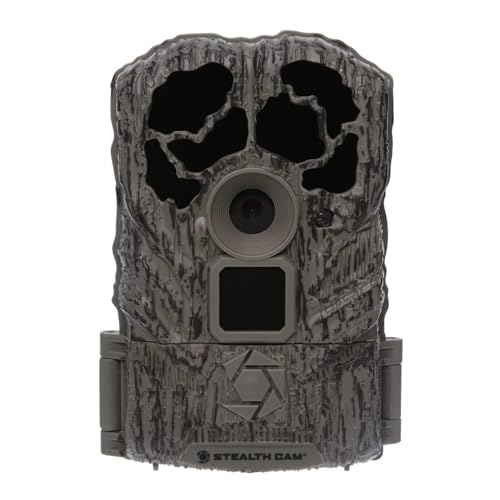
The durable Browtine 16MP trail camera features an 60ft infra-red detection range and burst mode to capture detailed information about your target area.
Why Deleting the App Won’t Cancel Your Subscription
Deleting the app from your phone does not cancel your subscription. Your subscription is tied to your app store account, not the app icon on your device. Removing the app only uninstalls it, but the billing agreement remains active within Google Play or the Apple App Store. This means that the paid subscription continues to renew automatically unless you cancel it manually.
The key point is that managing your subscription happens through your app store account, not by deleting or hiding the app. Think of deleting the app as throwing away a receipt—your purchase is still on record. Your subscription stays active until it reaches its expiration date, and the next payment will be deducted unless you complete a cancellation beforehand. So, don’t be fooled by the empty app icon—the financial commitment persists until you officially cancel in your account settings.
Troubleshoot When the Cancel Option Isn’t Working
If the cancel button isn’t appearing or the app’s menu isn’t responding, the issue is often related to platform mismatches or hidden settings rather than a malfunction. First, scroll down within your subscription screen; Apple often places the cancel option beneath visible text. If the button remains absent, check for a subscription overlap—you might have multiple cameras under a single account, and each camera requires a separate suspension. Additionally, verify billing platform compatibility—your subscription could be tied to Apple, Google, or a wireless provider, not directly to the app. Uninstalling the app won’t cancel your plan; instead, review your phone’s system subscriptions via iOS Settings or Google Play Store. If your subscription is managed through the wrong platform, cancel it there. Finally, reopen the Stealth Cam app, navigate to the hamburger menu, select Account, then the specific camera, and tap Suspend or Remove. Remember, you need to process each camera individually to stop billing across all devices.
Confirm Cancellation by Checking Your Payment Statements
After canceling your subscription in the app, check your payment statements to ensure billing has stopped. Look at your bank or credit card statement for recurring charges from Stealth Cam, GSM Outdoors, or the payment processor. Focus on the same billing amount across multiple billing cycles; repeated charges indicate that billing is still active. Match the charge dates with your renewal dates to see if any charges occurred after your cancellation. To verify, review your subscription status— it should show as canceled, suspended, or removed. If no new charges appear after the expected renewal date, your cancellation was successful. Save a copy of your statement for your records, and ensure the statement description matches the account you used to cancel to avoid confusion. Note that the green display in night vision is a result of the human eye being most sensitive to that color, a design choice unrelated to your billing process. For additional clarity, confirm that the cancellation process aligns with the steps outlined in your app’s help section, as the exact menu location can vary by device. For best results, place your trail camera at the correct height and angle to capture clear images, which is a key part of any successful setup.
Get Help From Stealth Cam Support If Charges Continue
If charges continue after your cancellation, contact Stealth Cam support directly to resolve the issue. A persistent subscription renewal often means you suspended the camera instead of fully removing it from your account. To escalate the issue, call 877-269-8490 or submit the official contact form on their website. Have your camera’s serial number, the date you attempted to cancel, and your payment details ready to speed up the process. Support can verify if your account still has active billing cycles and help you stop each one individually. Avoid relying on third-party forums or unofficial channels; only use official contact methods like the mailing address in Irving, Texas, or the dedicated phone line. Keep a record of all your cancellation attempts to facilitate the investigation and ensure quicker resolution. For users who also manage outdoor surveillance gear, understanding the performance and cost trade-offs between different night vision systems can help you select the right equipment for your needs. Understanding DVR mode on Stealth Cam can clarify whether your camera requires an active subscription for local recording or cellular transmission. If you are comparing features for future gear, top thermal cameras for Android can help you find a reliable model for night-time detection.

VERSATILE MOUNT FOR TRAIL CAMERAS & SOLAR POWER PACKS: Designed to securely support compatible trail cameras and solar accessories, helping optimize equipment placement in the field.

MOUNTING POST - For the hunter facing a treeless challenge, this Hunting Trail Camera Mounting Post is the solution; The mount's heavy-duty construction, adjustable height & multi-pivot capabilities make it a must-have companion for your trail camera
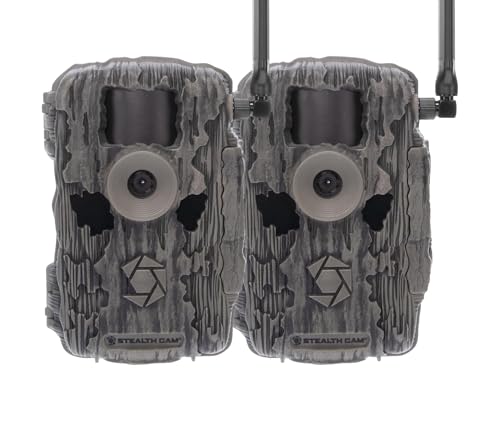
SUPERIOR QUALITY - Featuring 36MP photo resolution, 720p video resolution with a Burst Mode of 1-2 images per triggering, and a 80ft Detection range, the Stealth Cam Fusion X-Pro trail camera is the excellent choice for hunters who demand the most from their cellular trail cameras.
What to Do If You Want to Reactivate a Removed Camera
After reactivating your account, turn on the camera and press the sync button. This prompts the camera to recognize the restored account status and can help deliver photos taken during its inactive period. If the camera fails to reconnect, perform a reset by removing the batteries and SD card. Wait at least 45 minutes to ensure all residual power drains completely. Reinsert fresh batteries and the SD card, then press the sync button again. Check your account dashboard afterward to confirm the camera is active. If it still appears inactive, you will need to explicitly reinstate it through your account settings. Once active, reconfigure settings such as photo quality and motion sensitivity. Finally, return the camera to armed mode for field use. Before resetting, verify that the camera has power and internet to rule out basic connectivity failures that prevent the sync process from completing. Understanding that the cellular transmission method used by Moultrie Mobile relies on consistent network coverage can help isolate these issues. Reviewing the color palette on your thermal camera’s live feed can help confirm that the camera’s sensor is correctly calibrated and not misrepresenting heat signatures.