How to Use a FLIR Thermal Camera: A Beginner’s Guide
Using a FLIR thermal camera for the first time can seem tricky, but with a few simple steps, you’ll be capturing thermal images in no time.
From charging your device to adjusting settings for accurate readings, this guide will walk you through everything you need to know. Keep reading to learn how to make the most of your thermal camera.
How Your FLIR Thermal Camera Sees Heat vs. Light
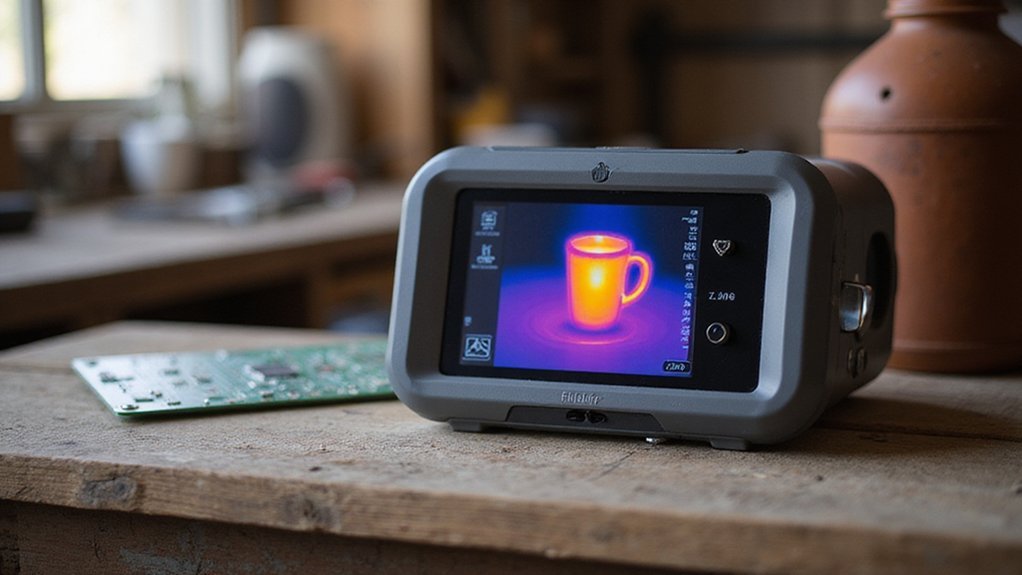
Your FLIR thermal camera sees heat, not light. It detects infrared radiation emitted by objects above absolute zero and creates images based on temperature differences. Unlike cameras that depend on reflected visible light, your thermal camera doesn’t need a light source. It uses a microbolometer sensor to measure tiny changes in infrared emission, converting them into electrical signals. These signals form a visual image where each color corresponds to a specific temperature, with a resolution that can detect differences as small as 0.01°C. Unlike night vision devices, your thermal camera does not require any ambient light to form an image. Understanding how the microbolometer sensor converts infrared radiation into a visual map is essential for interpreting thermal images correctly.
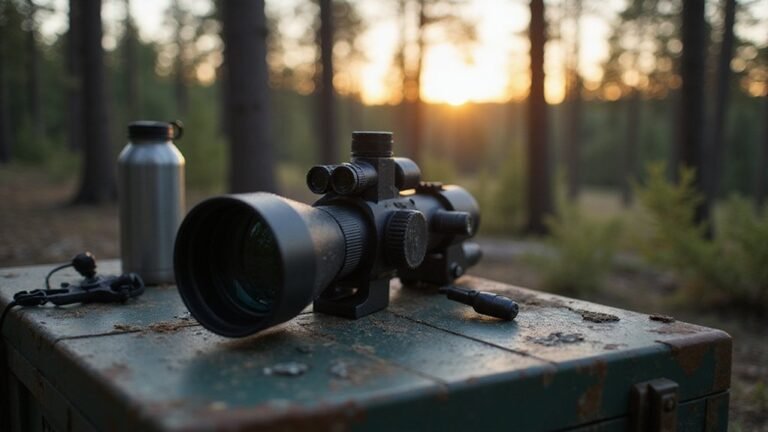
Because it relies on thermal energy, your camera functions effectively in complete darkness, bright sunlight, smoke, or fog. It ignores glare and shadows that can confuse regular cameras. Instead of capturing textures or colors, it highlights heat signatures—making objects stand out based on their temperature contrast with the background. This passive detection enables you to see the hidden heat emanating from objects, providing a clear view of thermal patterns that are invisible to the naked eye. Thermal scopes are commonly used for hunting and surveillance because they reveal living targets by their body heat.
Charge and Set Up Your FLIR Thermal Camera
Ensure your FLIR thermal camera is fully charged before use. A complete charge guarantees reliable operation during setup and imaging. Use only the included USB cable, wall adapter, or a compatible stand-alone charger. For Ex-series models, charging takes around two hours; wait until the blue LED stops blinking and remains solid to confirm it is fully charged. FLIR ONE devices typically charge in 40 minutes to four hours, with a steady LED indicating a full charge. Always use a compatible power source, such as a USB-C 15W supply, to maintain safety and charger longevity. Avoid charging the camera while in use, and if charging via computer, ensure the computer is powered on. After charging completes, open the lens cap and press the On/Off button to proceed with setup. Note that initial charging for T500-series cameras requires approximately three hours before first use, and the two included batteries should be charged fully to ensure accurate setup. For extended flight applications, you can integrate your camera with a DIY thermal drone to capture aerial thermal data.


Always be ready with a charged spare battery

UNIVERSAL CAMERA COMPATIBILITY: Engineered as the definitive power solution for your high-end thermal imaging fleet, this unit works perfectly with the Exx-Series, T5xx-Series, and T8xx-Series, ensuring your equipment never stays dark on a job.
Power On and Pair Your Camera With a Phone
To power on and pair your FLIR thermal camera with a phone, start by pressing and holding the power button until the FLIR logo appears. It may take up to 90 seconds before the image goes live, so be patient. Check the battery charge level if the display doesn’t turn on, as a low battery can prevent proper startup. For comfort during use, hold the device securely before proceeding with pairing. Properly setting up the device with tools ensures a stable initial connection.
Next, install the correct FLIR app on your phone and ensure Bluetooth is enabled. Open the app, go to the instruments area, and select your camera model from the list. You might need to scan a QR code displayed on the camera to complete pairing. Keep the camera close to your phone during this process. If pairing fails, verify that the camera is powered on and that you have selected the correct app. Once paired, the app will show a connected instrument, indicating it’s ready for synchronization. Ensure MSX technology is utilized for enhanced detail by maintaining at least 1 meter distance from the object for optimal alignment. If you want to build your own device, you can also consider essential DIY components such as a microbolometer sensor and a Raspberry Pi.

COMPATIBILITY: Wireless infrared cameras compatible with all Android or iOS devices using Bluetooth connection

COMPATIBILITY: Infrared camera plugs directly into phone charging port and connects with iphones with USB-C (iphone 15 and newer)

Frame and Save Thermal Images on Your FLIR
To frame a subject effectively, position your camera so the area of interest is centered or clearly visible within the shot. Keep the device steady to prevent blurring in both thermal and visible images. Before capturing, check that the thermal edges align well with visible edges for accurate comparison, especially when using FLIR ONE devices. High contrast in the thermal image helps your target stand out against the background, making identification easier. Additionally, a higher image resolution captures finer details. The focus options include automatic, manual, and continuous autofocus, which can be activated with laser distance measurement to ensure sharpness.
To capture a thermal image, press the Save button or trigger on your device. Many models show a preview first, allowing you to adjust the composition before finalizing the shot. When using I-Series cameras, each JPEG file saved includes radiometric data for detailed analysis later. You can also extract frames from video recordings or time-lapse sequences. Transfer images via USB or review them directly in the camera’s gallery. Radiometric JPEGs can be opened in FLIR software, providing in-depth reporting and analysis options.

MODEL TG165-X: 4,800 pixel IR camera measures temperatures from -25°C to 300°C (-13°F to 572°F)
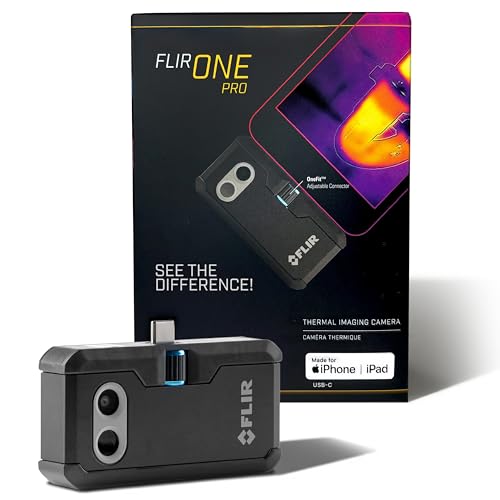
COMPATIBILITY: Infrared camera plugs directly into phone charging port and connects with iphones with USB-C (iphone 15 and newer)

Super Resolution Enhancement: The Flagfront YXI96 thermal camera is equipped with 240x240 super-resolution imaging technology, providing clearer images and capturing more details; A high frame refresh rate of 25Hz ensures a smooth inspection experience
Pick the Right Palette for Your Inspection
Choosing the right thermal color palette depends on your inspection goal. For detailed analysis of textures and subtle temperature changes, stick with monochrome options like grayscale or amber. These palettes preserve fine details and make gradual shifts in temperature stand out clearly, especially when shape accuracy is crucial. Understanding how decoding thermal camera colors impacts your setup ensures you select the best palette for the task. If you’re searching for small thermal differences, select high-contrast palettes like rainbow or red-blue. These palettes instantly make anomalies such as hot spots or leaks more noticeable, helping you identify issues early. They are particularly useful when quick detection of subtle variations is needed. For rapid hot-spot alerts, go with bold options like Iron or Rainbow. These deliver strong contrast and enhance immediate visibility of critical areas, making it easier to spot potential problems at a glance. Your palette choice should match the scene’s contrast levels and your report’s focus for the most effective results.

【Advanced Thermal Clarity Technology– See Problems More Clearly】 Find hidden heat sources before they turn into bigger problems.The 2.8 inch 320×240 LCD provides a clear on-screen view, helping quickly locate hot spots, cold areas, heat loss, electrical issues, HVAC problems and more.The thermal imaging camera adopts TISR(Super Resolution) technology, enhancing thermal image resolution up to 240×180, while the 25Hz refresh rate delivers smooth and clear real-time thermal imaging.

Advanced Image Enhancement Technology: This thermal camera adopts advanced TISR enhancement technology, upgrading 256x192 IR resolution to 320x240 super resolution. Paired with a 2.8-inch LCD, 2MP visible light camera, 25Hz refresh rate and ≤40mK thermal sensitivity, it delivers sharp, smooth thermal details.
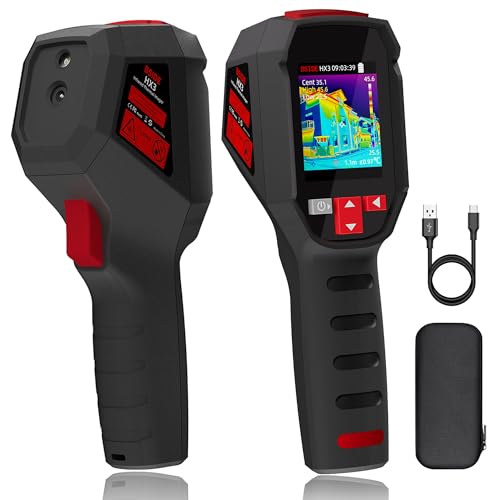
240×240 Resolution: Thermal imaging cameras feature 240×240 resolution for clearer real-time viewing and high-definition images. 50mk thermal sensitivity allows for visualization of temperature differences, helping you to detect problems early and diagnose them reliably.
Why MSX Puts Edges on Your Thermal Shots
MSX enhances thermal images by adding high-contrast outlines and labels from visible-light images. Because thermal images can lack detail when objects are at similar temperatures or features are faint, MSX provides a solution. It uses two cameras simultaneously—one thermal and one visible-light—to extract clear edges and scene details. These outlines are then embedded onto your thermal image in real time, creating a sharp visual overlay that highlights boundaries like screws, insulation edges, and connectors. This edge enhancement improves thermal clarity without changing the temperature data, preserving radiometric accuracy. You can toggle MSX on or off at will and remove it later using FLIR software. This feature helps you interpret scenes faster, especially with lower-resolution cameras, by making critical details immediately visible. An infrared illuminator works differently, actively projecting light to improve low-light visible cameras rather than enhancing thermal detail.
Use Spot Meters to Read Exact Temperatures
To get an exact temperature reading at a single spot on a thermal image, use the spot meter feature. Place the meter’s point directly on the target’s most representative feature, not on the surrounding area. Precise placement is crucial because the spot’s position influences the reading; moving it even slightly can shift the temperature value toward hotter or colder surroundings. However, it is important to understand that thermal cameras cannot see through walls, which limits their ability to detect heat sources hidden behind solid barriers. To ensure accuracy, tap and hold on the screen to drag the spot to the desired location. Keep in mind that the reading also depends on factors such as the distance to the target, ambient temperature, and the object’s reflectivity (albedo). For the best results, cover the hot area with at least a 3×3 pixel zone to stabilize the measurement. Remember, the spot meter provides a point-specific snapshot—it’s not intended to analyze a larger region or surface area. Using the integrated laser rangefinder (LRF) feature can help you account for distance to the target for more reliable temperature measurements.
Set Emissivity, Level, and Span Like a Pro
To set emissivity accurately, first identify the surface you are measuring and input the correct emissivity value from a chart or preset list. If the surface isn’t listed or known, use black electrical tape as a reference, which has an emissivity between 0.95 and 0.97. Measure the temperature of the tape with your infrared camera, then calibrate by adjusting the emissivity setting until the displayed temperature matches the tape’s actual temperature. Don’t forget to account for reflected temperature—shiny, low-emissivity surfaces reflect ambient infrared radiation, which can skew your readings. Set the reflected temperature value to your environment’s ambient temperature or measure it directly with a diffuse reflector for greater accuracy. This process ensures your temperature readings reflect the true surface temperature rather than artifacts caused by reflections. When using a diffuse reflector, select a rectangle ROI covering the panel to calculate its average temperature for the reflected temperature value. For operators transitioning from thermal to night vision, understanding PVS-31 performance is key, as their dual-tube design improves depth perception compared to single-tube units like the PVS-14. Night vision goggles function by amplifying ambient light to create a visible image in low-light conditions. When comparing the two technologies, thermal cameras detect heat signatures rather than light, making them effective in total darkness.
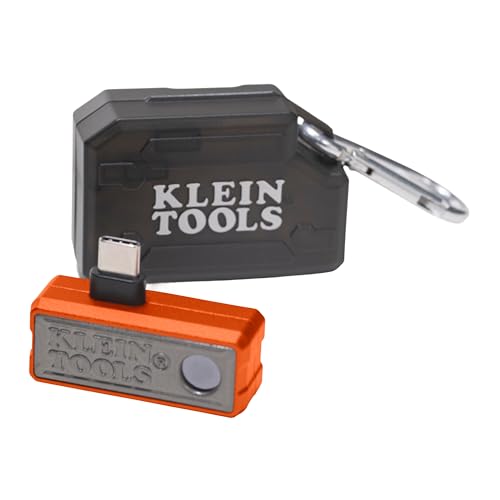
19,200-PIXEL RESOLUTION: High-quality thermal imaging camera delivers excellent resolution for troubleshooting hot and cold spots in electrical and HVAC applications

𝗠𝗔𝗫𝗜𝗠𝗜𝗭𝗘 𝗙𝗢𝗖𝗨𝗦 𝗔𝗖𝗖𝗨𝗥𝗔𝗖𝗬: Achieve razor-sharp focus and outstanding images with Spyder LensCal, the essential photo tool for optimizing your camera and equipment performance

[Enhanced Clarity with 512×384 TISR Resolution] - Start with 256×192 thermal imaging and enhance to 512×384 super resolution with TISR technology for providing clearer images and capturing more details. The wide 56° x 42° FOV, <40mk sensitivity and 25Hz high refresh rate deliver accurate and smooth thermal images, ideal for detailed inspections in homes and on electrical systems and machinery.
Save, Sync to FLIR Ignite, and Share Reports
After setting your emissivity, level, and span, you’re ready to save and share your findings. Save your report as an .atr file to keep a record for future editing; this preserves the project, allowing you to add pages or modify text later. Export a PDF to share a finalized version; PDFs are universally readable and prevent further editing, making them ideal for clients or supervisors. Before exporting, choose a preset template to create a professional layout with your images. You can also sync directly to FLIR Ignite, enabling cloud-based collaboration and easy access across devices. Additionally, you can email the PDF or share the .atr file with your team to support ongoing collaboration. Keep your source images stored both on the camera and on your computer for quick revisions later. For consistent results, always adjust the level and span before capturing critical data. You can also personalize report content by removing unwanted data such as emissivity, reflective temp, or optics info per image. For accurate temperature measurements, ensure your emissivity setting matches the material you are scanning, as incorrect values will skew the thermal data in your saved files.
Avoid These Beginner FLIR Mistakes
Even if you’ve mastered saving and sharing reports, beginner mistakes can still undermine your thermal inspections. One common error is misreading thermal patterns and jumping to conclusions about hot or cold spots without considering the full context. Always review images on a larger screen first to better interpret the data and avoid false assumptions. Temperature measurement errors are another frequent trap; ensure you set the correct emissivity and reflected temperature, especially when inspecting shiny metals or reflective surfaces. Heat signatures from all objects, not just the target, can skew your interpretation if you haven’t accounted for surrounding reflections. Trail cameras, which use motion sensors to capture images, offer a different approach by focusing on triggered events rather than continuous thermal imaging. For professionals needing precise detection, a top night vision camera can also provide reliable performance in low-light conditions. A similar step-by-step process is used when updating firmware on devices like the Tactacam Reveal to ensure optimal performance.
Failing to understand your camera’s limits can cause you to miss defects, especially if you’re using an entry-level model that might not detect tiny gaps or subtle issues. Proper focus is critical: poor focus can introduce image distortion and false temperature readings, so always focus your camera before saving each image. Additionally, thermal noise resulting from camera shake or movement can degrade image quality, making accurate analysis more difficult. Using a tripod helps maintain stability and clarity.
Lastly, always document environmental conditions during inspections, such as ambient temperature and humidity. Don’t advertise or offer analysis services until you feel confident in your knowledge and capability, as inaccurate readings or overlooked details can lead to costly mistakes.