How to Request a Video on Moultrie Mobile
If you’re wondering how to get a video from your Moultrie Mobile camera, you’re not alone. The process involves switching your camera to video mode.
Enabling On Demand is the next step to request a video through the app. It’s a straightforward way to view specific footage without waiting for regular uploads.
Keep reading to learn the simple steps to request your videos quickly and easily.
3 Reasons to Request a Video From Your Moultrie Camera
Requesting a video from your Moultrie camera provides a detailed look that still images can’t match. When you see a thumbnail hinting at movement, requesting a full clip allows you to confirm species, antler size, or behavior within seconds. This saves you from guessing whether that blurry shape is relevant or not, enabling instant validation of wildlife activity. With species recognition built into the camera, your requested video can automatically identify whether the animal is a buck, doe, or other creature, removing all guesswork.
Videos reveal motion and interaction details that a single photo can’t capture—such as approach patterns, pauses, and departures. Watching these clips helps you understand how animals interact with their environment and how your camera placement influences their movements. Additionally, a brief video gives context to the event, showing timing and direction, which enhances your insight into animal behavior. Night vision technology in your camera ensures clear footage even in low-light conditions, so you never miss a detail. Military-grade thermal scopes utilize advanced optics to detect heat signatures in complete darkness, a capability that mirrors the clarity you get from your Moultrie camera’s night vision. Understanding this thermal detection technology helps you choose the best camera for consistently clear nighttime footage.
Focusing on specific moments by requesting videos allows you to review only the most important activity. This approach saves storage space and your time, as you don’t need to sift through every image. Each requested clip adds depth to your record, providing a richer understanding of the wildlife on your property.
Required Settings: Video Mode, On Demand, and Camera Check-In
To request a video clip, you first need to set your camera to Video Mode. Confirm that the camera accepts this change, as it may require a check-in to validate the new setting. Once in Video Mode, enable the On Demand feature to retrieve your clip. After switching to Photo+Video mode, make sure to save this setting so the camera can check in again, confirming the update. Adjusting the capture mode optimizes scouting efforts for your specific needs.
During that next connection, the camera uploads a thumbnail with a play icon, indicating a video is ready. Tap the thumbnail to request the full video clip. The camera will check in once more to upload the complete footage. Keep in mind that placing your camera near triggering zones reduces unnecessary recordings. Also, recording in Video Mode consumes more battery because it captures the entire duration, which drains power faster than taking photos alone.
How to Request a Video in the Moultrie Mobile App
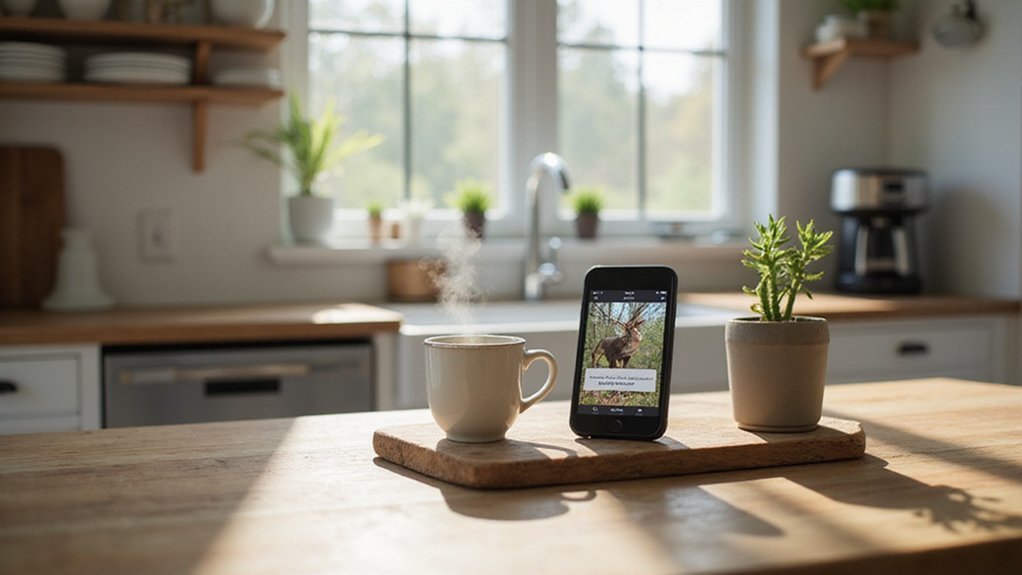
Once your camera is set to Video Mode with On Demand enabled, you’ll see a thumbnail with a circled play icon in the app’s gallery. This indicates a requestable video. Tap the thumbnail to expand it, then select the Video download option. Confirm the upload prompt to send the request. The camera needs to reconnect to receive your request and upload the clip. The time it takes depends on signal strength and camera settings, but On Demand videos generally upload within four minutes. Upon receiving the command during its next check-in, the camera automatically retrieves and uploads the requested 15-second clip with audio. Unlike analog night vision, digital night vision in modern cellular cameras provides clearer low-light imagery for these on-demand clips.
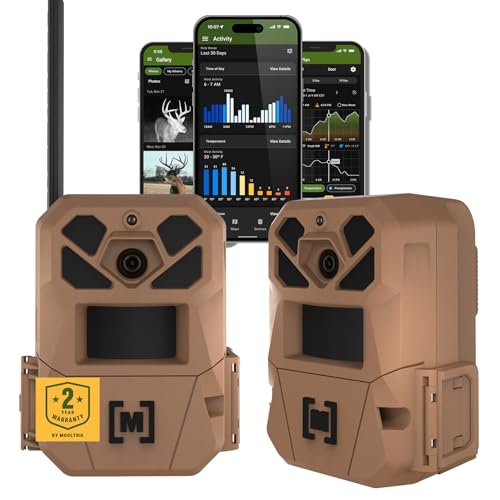
HARVEST MORE BUCKS THIS SEASON - EDGE 3 delivers real-time deer activity, movement patterns, and location intelligence—so you know when and where mature bucks are moving instead of hunting on hope.

Easy Connectivity: Edge's Auto Connect technology keeps you seamlessly connected. Imagine a dependable hunting ally that auto-detects and links to the strongest signal across multiple networks

HARVEST MORE BUCKS THIS SEASON - EDGE 3 delivers real-time deer activity, movement patterns, and location intelligence—so you know when and where mature bucks are moving instead of hunting on hope.
Request a Video From the Moultrie Website
To request a video from your Moultrie camera, ensure that your camera has been properly calibrated first. This step is essential so your camera captures clear and correct video footage before you make a request. For battery optimization, avoid requesting more than three videos at a time, as retrieval can take up to 24 hours. During this period, the video must still reside in the camera’s internal memory; if it has been deleted or overwritten, the request will fail. When the video successfully uploads, the original thumbnail will be replaced by a PLAY button, allowing you to view the footage directly. This feature works exclusively with EDGE, BASE, and DELTA camera models. These cameras transmit cellular data through the Moultrie Mobile network to deliver the requested clip to your account. For optimal performance, ensure your camera’s sensor is properly calibrated like a thermal drone’s sensor to avoid blurry or inaccurate footage. To prevent storage issues, you may need to clear your SD card periodically to free up space for new video requests.

Upload data, erase and reuse without losing quality

Compatible with iPhone 15 and later, MacBook series, and Android devices (OTG Required) with USB-C ports
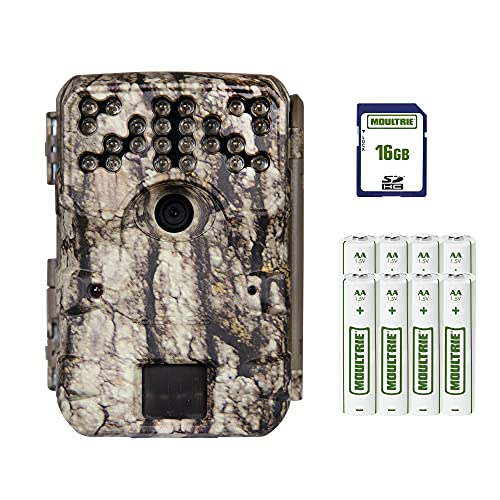
Takes industry-leading 30 MP pictures for incomparable quality and detail. Count every antler point with these ultra-high-resolution images.
Request a Video in Minutes With on Demand
To request a video in minutes, start by ensuring On Demand is enabled in your camera’s settings. Move to Devices > Gear > On Demand and toggle it ON, then save your settings. Your camera will need to reconnect, indicated by a Pending Check-In alert until it does. Once your camera shows Ready, tap the On Demand bubble and select your preferred video length—either 5, 10, 15, or 20 seconds. The video will typically upload within four minutes, but this depends on your signal strength. Keep in mind that camera placement affects connectivity; position your camera within range for a faster, more reliable upload.
Battery management also matters—On Demand requires the camera to be powered on. Only videos still stored in internal memory can be requested, so act quickly to avoid losing footage. After the camera reconnects, the thumbnail displays a play icon. Tap it, select Video, and the video will load with a larger play button, ready for viewing.

NATIONWIDE CELLULAR COVERAGE & USA-BASED SUPPORT – Stay connected with Auto Connect technology, ensuring seamless 4G LTE access across all major U.S. networks without swapping SIM cards or buying data plans from an outside company. Moultrie, a USA-based company, offers dedicated U.S. customer support for expert assistance whenever you need it.

RUN ALL SEASON WITHOUT TOUCHING A BATTERY - The large adjustable solar panel features pan/tilt positioning to chase the sun from any hang. Set it up once and let the sun run it - no battery swaps, no return trips, all season long.

HIGH-RESOLUTION IMAGING & VIDEO – Capture stunning 40MP photos and 1440p HD video with audio for crisp, detailed footage. Advanced image sensor enhances low-light performance, delivering sharp night and day visuals.
Spot a Requestable Video: Look for the Play Icon or Video Label
On the web gallery, you’ll spot a thumbnail labeled “Video” instead of a standard still image. Enlarging that labeled image reveals the Request Video** option, allowing you to start the request process right from that visual cue. After you submit the request and receive the clip, the thumbnail is replaced by a larger play button, confirming that playback is ready to view. Until then, the indicator remains attached to the original image, so you won’t confuse a requestable clip with a plain still image. Unlike military NODs that amplify existing light for clarity, these video triggers rely on your camera’s sensor settings to deliver sharp footage. For comparison, the top-rated night vision goggles often prioritize image clarity through enhanced light amplification. Device management within the app also tracks your active cameras, ensuring you know which devices are transmitting these video triggers. Similar to how low-light performance** can enhance target clarity in a scope, ensuring your camera’s sensor settings are optimized helps capture sharper video triggers for review.

Elevate Your Wildlife Monitoring: Step up your wildlife monitoring game with the Moultrie EDGE PRO Cellular Trail Camera – your gateway to the ultimate trail camera experience. Capture moments like never before with a range of groundbreaking features that bring you closer to nature.

WIRELESS SECURITY - Moultrie’s cellular trail cameras are versatile, running on AA batteries, solar panels, or rechargeable battery packs. They send high-resolution images and videos directly to the Moultrie Mobile App, making them ideal for remote locations where electrical outlets and Wi-Fi are unavailable. These trail cameras for security ensure reliable surveillance anywhere you need it.
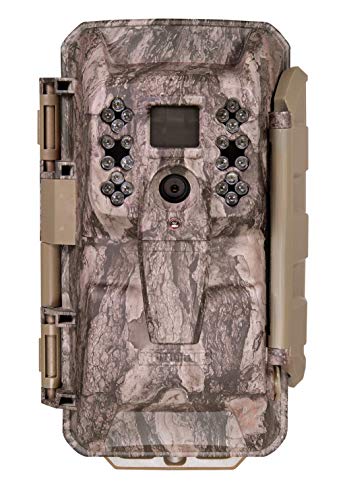
Cellular game camera sends trail camera images from the field to your smartphone and computer.
Find Your Requested Videos in the Gallery or App
After your camera checks in, go to the gallery page on the website. The thumbnail for each video will now display a PLAY button, ensuring you stay linked to your original request location. Open the gallery immediately after uploading to verify the video’s presence, especially if you’ve moved the camera or changed photo quality settings. Shared galleries remain accessible within the same screen, so you can also view videos from accepted shared links there. For performance in low-light conditions, you may benefit from top night vision camera drones for quality and value. To ensure your camera stays powered during extended use, consider using lithium batteries that perform reliably in cold temperatures. Guests can only view shared galleries and cannot delete pictures from them. Tap the tile with the PLAY button to watch your clip instantly. For troubleshooting playback issues on your computer, you may need to use a dedicated card reader to access the SD card directly from the camera.
Why a Requested Video Can Take 4 Minutes or 24 Hours
Standard video requests depend on your camera’s next connection cycle, which your settings determine. If your camera checks in only once every 24 hours, that’s the maximum wait time. Pressing the button in the app does not cause an instant upload; instead, it prompts the camera to reconnect. The camera must re-establish connection to receive the instruction to upload the recorded video. Factors like signal strength, connectivity stability, and how often your camera checks in all influence whether you see your video within minutes or after a full day. For hunters considering aerial surveillance, a thermal drone can provide real-time heat signature detection without the same delays. For a more secure setup, consider building a trail camera security box to protect your camera from theft or weather damage. Understanding the cost factors behind night vision technology can help you save money on similar camera equipment.
Fix 4 Common Video Request Failures (Memory, Signal, Settings)
When a video request fails, the most common issues are related to memory, signal, settings, or account status. Start by checking video storage—the file must still be saved in the camera’s internal memory. If it has already been deleted or the memory is full, you won’t be able to retrieve it. Next, examine signal strength; weak cellular coverage can prevent the camera from receiving your request or uploading footage. Walk closer to the camera and press the connect button to initiate a new connection. Then, verify camera settings: ensure video recording is enabled, On Demand mode is active, and reconnect the camera after making any adjustments. Lastly, confirm your data plan is active and your app is up to date. If these steps don’t resolve the issue, replacing batteries and the SD card often fixes stubborn units. To avoid system overloads, limit video requests to no more than three videos at a time. Before troubleshooting further, confirm the camera’s connection within the last 24 hours to rule out a server communication failure tied to a non-responsive device.


Zippered case with durable nylon fabric construction

Compatible with Nintendo-Switch (NOT Nintendo-Switch 2)