How to Use a Stealth Cam SD Card Reader: A Quick Guide
If you’re wondering how to quickly and safely transfer footage from your Stealth Cam SD card to your computer, you’re not alone. Using a USB 3.0 SD card reader makes the process faster and easier, especially when dealing with large files.
By the end of this guide, you’ll know the simple steps to connect your SD card, copy your footage, and ensure everything plays correctly before formatting.
Let’s walk through how to do it efficiently and securely.
Choose the Right SD Card Reader for Your Stealth Cam
Choose a card reader that precisely matches your Stealth Cam’s output. Most trail cams use SD or microSD cards, so select a reader compatible with these formats. Confirm that the reader supports the specific card type—SD, SDHC, or SDXC—as well as capacity classes, which can range from a few gigabytes to several terabytes. Pay attention to the connection type: USB 3.0 or newer ensures faster transfer speeds, making your workflow more efficient. USB-C connectors are ideal for modern laptops and devices, providing a quick and reliable connection. For regular field work, opt for a compact, durable reader from a reputable camera-accessory brand to withstand rugged conditions. While wireless transfer and cloud storage options exist for remote access, a reliable physical reader delivers the highest speeds and most direct access. Avoid mismatched or incompatible readers, which can physically prevent you from extracting your photos. Prioritizing compatibility and speed will save you time and frustration in retrieving your images. Additionally, check the reader’s technical specifications to confirm it handles the same speed classes (like UHS-1) that your camera uses for consistent data transfer. Unlike thermal imaging, which detects heat signatures, a night vision card reader is not required, but understanding night vision vs. thermal differences can help you choose the best trail cam setup for your surveillance needs. For those interested in building their own low-cost night vision system, the same SD card reader works with DIY camera modules that use infrared illumination. When comparing models, look for a reader with a highly rated design that reviewers praise for reliable performance in outdoor conditions.

Simultaneously read and write on two cards to save yourself the effort of constant unplugging and re-plugging.

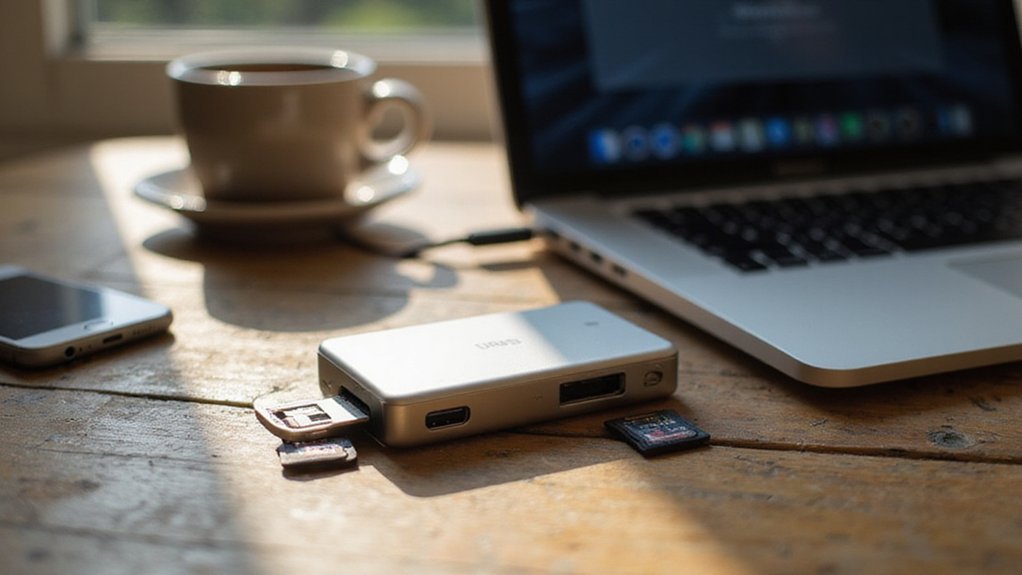
【Dual Slots Design】 - This usb sd card reader has Micro SD Card Slot and SD Card Slot with USB 3.0 plug, It could easily transfer the file you need between different devices or review the photos/videos quick.

【Ultra-Fast Data Transfer】Experience blazing-fast 5Gbps data transfer with this USB 3.0 SD Card Reader, ensuring quick and efficient file transfers for photos, videos, and other media. Backward-compatible with USB 2.0 for added flexibility. Easily review and transfer data from security cameras, wildlife monitors, or car cameras, gopro without hassle(📌Note:only reads and transfers data from the SD and TF card, not directly connect to the camera)
Check the Card Before Inserting It Into the Reader
Check the lock switch on the side of the SD card first. If it’s slid to the “lock” position, move it to “unlock.” A locked card prevents normal file access even if the reader recognizes it. After adjusting, ensure the switch stays in the new position, as it can shift during transport. Confirming the lock status now helps you avoid mistaking a card setting issue for a problem with the reader or computer later. Both the Android and Apple versions of the Stealth Cam reader accept SD and micro SD cards, so verify the card fits the correct slot for your device before proceeding. Understanding how a thermal imager detects infrared radiation is useful for comparing different camera technologies, though it does not affect SD card reader operation. For those considering upgraded optics, reviewing different night vision types can help clarify which device best matches your surveillance needs. Thermal scopes instead convert heat signatures into visible images, making them effective in complete darkness.
How to Connect the Reader and Access Stealth Cam Files
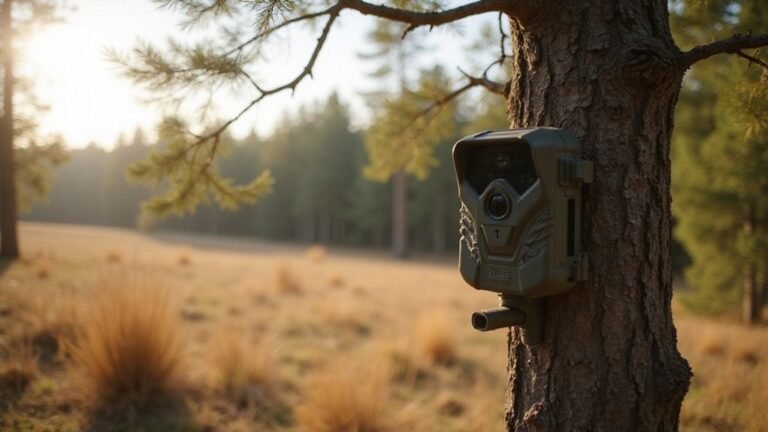
Connect your Stealth Cam SD card reader to your computer, phone, or tablet using the appropriate USB, Lightning, or micro-USB connector designed for your device. Ensure you are plugging into a compatible port—USB 2.0 or 3.0 for computers, or the correct port for mobile devices. Use a compatible app like IE Drive for Apple devices. Insert the SD card with the label facing up; on some phones, you might need to insert it upside down until it clicks into place. This reader saves space in pockets by eliminating the need to carry the trail camera separately. For optimal low-light viewing, you may want to consider purchasing night vision binoculars from a trusted retailer. Make sure your trail camera is set up properly before capturing footage to ensure the files are useful. Understanding how a trail camera works can help you position it for better results.
Once connected, your device should recognize the reader as a new drive in File Explorer or Finder. On mobile devices, check the companion app to see if the card appears. If it does not, troubleshoot connectivity issues by inspecting device manager or disk management tools. For ongoing problems, consider updating the firmware of the card reader. Open the drive or app, then navigate to the DCIM or Stealth Cam folder to access your photos and videos. Always use the Safely Remove or Eject function before disconnecting to prevent data corruption.

HIGH PERFORMANCE - The Stealth Cam Card Reader/ Photo Viewer enables you to view images and HD videos with 1080P Video Playback; You can not only view but also manage images with new View & Delete options


Bundle Includes: Stealth Cam Browtine 14MP Trail Camera with Video bundle with SD Card Reader-Viewer, Memory Card and High Speed USB 2.0 Card Reader
Copy and Verify Your Trail Camera Footage the Right Way
To copy and verify your trail camera footage correctly, start by transferring the files from your memory card to a safe storage location. Use your file explorer to batch-select the footage, making sure to preserve the folder structure for easy organization and retrieval later. Once copied, open each file with a media player or video viewer to verify that they display correctly. Check for clarity, color accuracy, and completeness to ensure the footage is usable. This step prevents the risk of losing an entire capture set before you’ve had a chance to review it. Before formatting your SD card for reuse, confirm that your backup copy is complete and error-free. When copying files, adopt a consistent naming convention—such as date and location codes—to keep everything organized. Copy first, verify second, and then reset your card, ensuring no footage is lost or corrupted during the process. If your camera experiences issues, you may need to perform a factory reset to restore default settings before reformatting the card.

Compatible with iPhone 15 and later, MacBook series, and Android devices (OTG Required) with USB-C ports

SIMPLE NAVIGATION - Game surveillance is only part of the equation; Once your trail cameras capture the story, you need to be able to watch the story back quickly; You can do it with just the swipe of a finger with the Wildgame Innovations Trail Pad Swipe

HIGH-DEFINITION VIEWING: Muddy CRV3 HD SD Card Viewer boasts a 4.3-inch color LCD screen, delivering crisp high-definition visuals for effortless viewing of your SD card captures; This ensures every image and video is displayed with exceptional clarity
Eject the Card Safely and Maintain Your Reader’s Performance
To eject the card safely and maintain your reader’s performance, start by powering down the camera and ensuring all indicator lights are off. Gently press the card straight into the slot until you hear it click. Then, pull it out smoothly without twisting or forcing it. Avoid touching the gold contacts to prevent dirt or static from contaminating the connection. To further protect sensitive electronics, consider that thermal drone builds often use anti-static materials to reduce electrostatic discharge risks during assembly. Keep the card slot clean by regularly removing dust or debris, and always treat the eject mechanism with care to avoid damage. When not in use, store your card in a protective case to safeguard it from physical harm and static build-up, ensuring reliable performance over time. Before physically removing the card, use the system tray’s “Safely Remove Hardware” icon to eject it, ensuring data integrity and preventing file corruption. Given that your reader and card are built to endure field conditions, you should also confirm they meet the same impact-resistant standards as quality tactical gear. Understanding the principles of heat detection used in DIY thermal builds can help you appreciate why keeping connections clean and secure is vital for sensitive electronics.