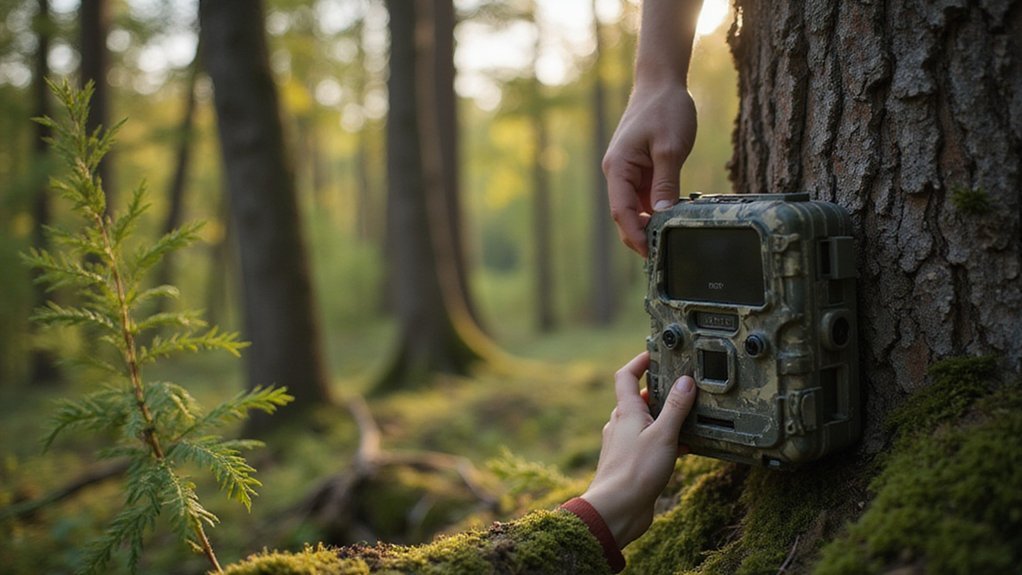
How to Reset Your Tactacam Reveal X Trail Camera
If your Tactacam Reveal X trail camera isn’t working right, you might need to reset it. The process isn’t complicated, but knowing where and how to do it can be confusing at first.
By understanding the difference between a soft reset and a hard reset, you’ll be able to troubleshoot common issues and get your camera back in action.
Keep reading to learn the step-by-step details and tips for successfully resetting your camera.
How to Find the Reset Button on Your Tactacam Reveal X
To locate the reset button on your Tactacam Reveal X, look for a tiny, recessed pinhole inside the camera. Start by opening the front door with its latch. Once open, perform a visual inspection of the interior, focusing on the bottom inside surface near the lower edge or hinge area. The reset button is a small, circular indentation about仅约1mm across, flush with the plastic. It’s designed to be discreet and may be confused with ports for the SD card or batteries, but it will not protrude. When reviewing footage later, it’s helpful to understand that unexplained circles in night images are often lens flare orbs from internal light reflection and not paranormal activity. For detailed tasks like this in low-light conditions, a tool like a thermal imaging camera can help you spot components other lights would miss, similar to the specialized capabilities of a custom thermal drone. To press it, use a slim tool like a paperclip, carefully inserting it into the pinhole to activate the reset function. Ensure the camera is powered on and in the correct mode before initiating a factory default reset.
How to Prepare Your Camera and App for a Reset
To prepare your camera and app for a reset, start by ensuring your camera is ready. Charge the battery fully or insert a new one to avoid power interruptions during the reset process. Switch your camera to “Setup” mode; a solid red status light indicates it’s active and ready. Check that the cellular and Wi-Fi indicators are lit to confirm connectivity. Also, verify that the SD card is inserted properly and formatted to prevent data corruption. Using a high-quality SD card, such as a Class 10 SD card, is recommended for reliable performance. Understanding your camera’s stealth capabilities can enhance its effectiveness in the field. Properly accessing your media files later may require a reliable SD card reader. For optimal nighttime footage, consider the camera’s infrared technology.
Next, prepare your phone. Download and install the latest version of the Tactacam app from your official app store. Using an outdated app can cause troubleshooting issues later. Log into your account on the app. Then, enable both Wi-Fi and Location Services on your smartphone. Make sure your phone is not connected to other networks that might interfere with the connection. These steps are crucial to ensure a smooth reset process.

Expand Memory: The 2pack 64GB micro SD cards can add extra capacity to your devices, free up the device's space, enable the smartphone to run smoothly, and you needn't spend more money to buy the large-capacity phone


Fast Transfer Speed: The TF memory card adopts Speed Class UHS-I provides with 80MB/s of read speed and 20MB/s of write speed(Note:TF cards transfer speed may vary depending on capacity, test platform hardware, test software, and operating system)
Perform a Soft Reset to Fix Common Issues
If your Tactacam Reveal X is experiencing glitches or connectivity problems, performing a soft reset is a quick and effective fix. Locate the recessed reset button inside the camera’s door near the power switch. With the camera powered on, use a paperclip to press and hold this button for ten seconds, then release it. The device will power down and then automatically reboot, which indicates the reset was successful. This simple step helps resolve software errors or connection drops without affecting your core settings. It’s also useful for fixing issues caused by power irregularities. After the reset, open the Reveal app to reactivate your camera and quickly reconfigure your preferences.

AUTO-CONNECT MULTI-CARRIER LTE — AT&T AND VERIZON — An integrated SIM automatically locks onto whichever carrier has the stronger signal at your exact location. No SIM swapping. No carrier lock-in. No dead zones from a single-network camera. Just signal

AUTO-CONNECT MULTI-CARRIER LTE — AT&T AND VERIZON — An integrated SIM automatically locks onto whichever carrier has the stronger signal at your exact location. No SIM swapping. No carrier lock-in. No dead zones from a single-network camera. Just signal

COMPLETE X 4.0 BUNDLE, READY OUT OF THE BOX — Includes the REVEAL X 4.0 cellular trail camera plus a microfiber cleaning cloth. 8GB of built-in storage means no SD card purchase required (optional slot for extra local backup).
When and How to Use a Hard Reset
A hard reset should be used when a soft reset fails to resolve ongoing issues. You need to perform one if the camera won’t turn on, if there are persistent Wi-Fi pairing failures, or if the device crashes repeatedly due to memory card errors. Indicators such as continuous blinking lights or a frozen system also signal the need for a hard reset. This process restores the camera to its factory defaults, erasing all user settings and preferences. It is different from firmware updates, which install new software versions, and requires a fully charged or well-maintained battery to ensure the device doesn’t power off during the reset. For example, devices with night vision capabilities use infrared LEDs that may be restored to default behavior after a reset. Use a hard reset as a last resort after other troubleshooting attempts fail, but keep in mind it cannot repair physical hardware damage. Afterward, you’ll need to reconfigure your network settings, preferences, and any customizations from scratch, similar to the process of managing a Stealth Cam subscription, and physically securing the device afterwards can be accomplished with a DIY security box.

REAL-TIME PHOTOS DELIVERED STRAIGHT TO YOUR PHONE — The REVEAL X 2.0 sends images to the free REVEAL app via AT&T 4G LTE the instant motion is detected. No WiFi. No SD card runs. Stop making blind trips and start making informed decisions

Includes Tactacam Reveal X 3.0 Cellular Trail Camera , Tactacam Reveal Solar Panel, and Field Boys Microfiber Cleaning Cloth by Trail Cams Galore, a Trademarkd Brand. The Tactacam Reveal X 3.0 is highly adaptable. It can be paired with optional accessories such as solar panels for extended battery life, and it is designed to work on multiple cellular networks, giving you flexibility in choosing your cellular provider.

OUTDOOR GEAR
Step-by-Step Guide to a Hard Reset
To perform a hard reset on your camera, locate the recessed reset button inside the bottom camera door. Open the compartment to find the small pinhole. Before starting, ensure the camera is completely powered off. Use a straightened paperclip to press and hold the reset button. While maintaining pressure, turn the camera back on. Keep holding the button for a full 30 seconds; failing to do so can prevent the reset from completing. This process clears all data, which is often necessary for troubleshooting connectivity issues. This reset procedure is a common troubleshooting step shared by cameras across the Tactacam Reveal series. Once the time is up, release the reset button—your screen will turn dark, and the device will reboot. To avoid interruptions, use fresh batteries to guarantee good battery maintenance during this process. For security, remember to first format the SD card separately using your computer if you plan to use it again. The process of assembling electronic components like these shares similarities with other DIY projects such as building a thermal monocular.

Image Resolution: 16 Megapixels

SETUP IN MINUTES — Pre-installed antenna and pre-activated SIM card get your Reveal Pro 3.0 sending photos within minutes, no technical experience required.

OFFICIAL OEM ANTI-THEFT PROTECTION: Built by Tactacam specifically for REVEAL cameras, this powder-coated steel security box deters theft and protects against animal damage with a precision fit — no gaps, no rattling, no repositioning after removal
Reconnect and Reconfigure Your Camera After a Reset
After performing a hard reset, reconnect your camera to Wi-Fi and reconfigure it through the Tactacam app. First, turn on Wi-Fi and enable location services on your phone. Then, open the app, select “Connect to Reveal” in the settings menu, and scan for available networks. Find your camera’s network name, then enter its serial number to activate the device. Once connected, verify the live feed to ensure proper setup. Adjust your camera placement if signal strength is weak, especially if you notice buffering or lost feed. For scenarios requiring long-range observation in the dark, understanding the thermal imaging capabilities of your gear can help in selecting optimal locations. Restore your custom settings, including photo quality and capture intervals, ensuring you choose the best settings for low light conditions. For monitoring wildlife behavior over time, selecting the appropriate capture interval is a critical configuration. Keep an eye on the battery level in the app to manage ongoing battery maintenance. Finally, link your camera to your account within the app to regain remote control and access to cloud storage. You can then manage your camera through the app from any location, without needing to be physically near it.

Universal:This Trail Camera Power Cord is suitable for all universal batteries and Trail game cameras(4.0x1.7mm DC Plug).

DATA: Frequency Range: 698-2700 MHz; Gain: 9dBi; Direction: Omni-directional; Waterproof: IP67; V.S.W.R: <1.8 ; Impendance: 50Ω; Antenna Connector: RP-SMA Male;

Wide Range:Trail camera power cord compatible with 4.0x1.7mm DC plug trail game Camera,like Tactacam Reveal X XB SK,Wise Eye,Spartan Gocam,Covert Cameras,Snyper Cameras,Etc.